 -by
-by A VPN Server gives you complete control over your private internet connection. Instead of depending on a third-party VPN provider, you can build and manage your own secure server. This approach lets you encrypt your online traffic, access your home network remotely, and improve privacy while reducing long-term subscription costs.
In 2026, setting up a VPN Server has become much easier than it was a few years ago. Modern operating systems, faster internet connections, and user-friendly VPN software allow beginners and professionals alike to create a secure VPN without needing advanced networking skills.
This comprehensive guide explains everything you need to know—from choosing the right hardware and VPN protocol to configuring a secure server on Windows, Linux, Raspberry Pi, Synology NAS, or a cloud platform. Whether you want a personal VPN for travel, a business solution for remote employees, or a secure way to browse public Wi-Fi, this tutorial will help you make informed decisions.
If you enjoy networking and security tutorials, you can also explore similar technology guides on Tech All World and Techh AtoZ. For travel planning after securing your connection, Beach Near offers destination ideas, while Restaurent can help you discover restaurants around the world.
What Is a VPN Server?
“What is a vpn server?” is a common question. In a nutshell, a VPN server is a computer or network device that allows authorized users to establish secure VPN connections. It shields your internet traffic from eavesdropping by establishing an encrypted tunnel between your device and the server once it is connected.
Unlike public VPN services that route traffic through company-owned servers, your own VPN allows you to control where your data travels and who can access the server.
A VPN Server typically performs several important tasks:
- Encrypts internet traffic
- Authenticates users
- Assigns secure IP addresses
- Routes data safely
- Protects information on public Wi-Fi
- Enables secure remote access
Because all communication is encrypted, hackers, internet service providers, and many third parties have a much harder time monitoring your online activities.
How Does a VPN Server Work?
When you connect to a VPN Server, several steps happen automatically.
- Your device contacts the server.
- The server verifies your identity.
- An encrypted tunnel is created.
- All internet traffic passes through this secure tunnel.
- Websites detect the VPN server’s IP address instead of your real IP address.
This method helps secure sensitive data, including passwords, online banking sessions, work files, and private messages.
Why Build Your Own VPN Server?

Instead of paying monthly subscription fees, many users prefer running a personal VPN Server because it offers:
- Better privacy
- Greater control
- Lower long-term cost
- Faster local access
- Custom security settings
- Remote access to home devices
Although commercial VPN providers remain useful for accessing many global locations, a self-hosted VPN gives you full ownership of your data and infrastructure.
How a VPN Server Works
Understanding the technical process helps you build a more secure VPN. Imagine sending a postcard through regular mail. Anyone handling the postcard can read the message. A VPN changes that postcard into a locked metal box that only the intended recipient can open.
A VPN Server performs three main security functions:
Authentication
The server verifies that only approved users can connect.
Authentication methods include:
- Username and password
- Public/private keys
- Certificates
- Multi-factor authentication (MFA)
Encryption
Encryption converts readable information into unreadable data.
Popular encryption standards include:
- AES-256
- ChaCha20
- Poly1305
Strong encryption keeps your browsing, emails, and file transfers secure.
Secure Routing
After encryption, the VPN Server routes traffic securely between your device and the internet or your private network.
This process helps protect:
- Company files
- Personal documents
- Home servers
- Smart home devices
- NAS storage
- Remote desktop sessions
Benefits of Running Your Own VPN Server
Building your own VPN Server provides several advantages over relying entirely on commercial VPN providers.
Complete Privacy Control
Since you own the server, you decide:
- Who connects
- Which devices have access
- What logs are stored
- Which security settings are enabled
There is no need to trust an unknown provider with all your internet traffic.
Better Remote Access
A self-hosted VPN makes accessing your home or office network much easier.
You can securely reach:
- Desktop computers
- File servers
- NAS devices
- Security cameras
- Printers
- Smart home systems
This is especially useful when traveling.
Lower Long-Term Cost
Commercial VPN subscriptions often require yearly payments.
Running your own VPN Server usually involves:
- Existing hardware
- Cloud hosting (optional)
- Internet connection
- Free VPN software
Over time, this can reduce recurring expenses.
Faster Local Performance
When connecting to your own network, your VPN Server may provide better speeds than distant commercial servers because data travels fewer network hops.
Performance depends on:
- Upload bandwidth
- CPU performance
- Encryption method
- Internet quality
Improved Security
Modern VPN software supports:
- Strong encryption
- Automatic updates
- Secure authentication
- Certificate-based access
- Firewall integration
These features significantly improve network security.
Types of VPN Servers
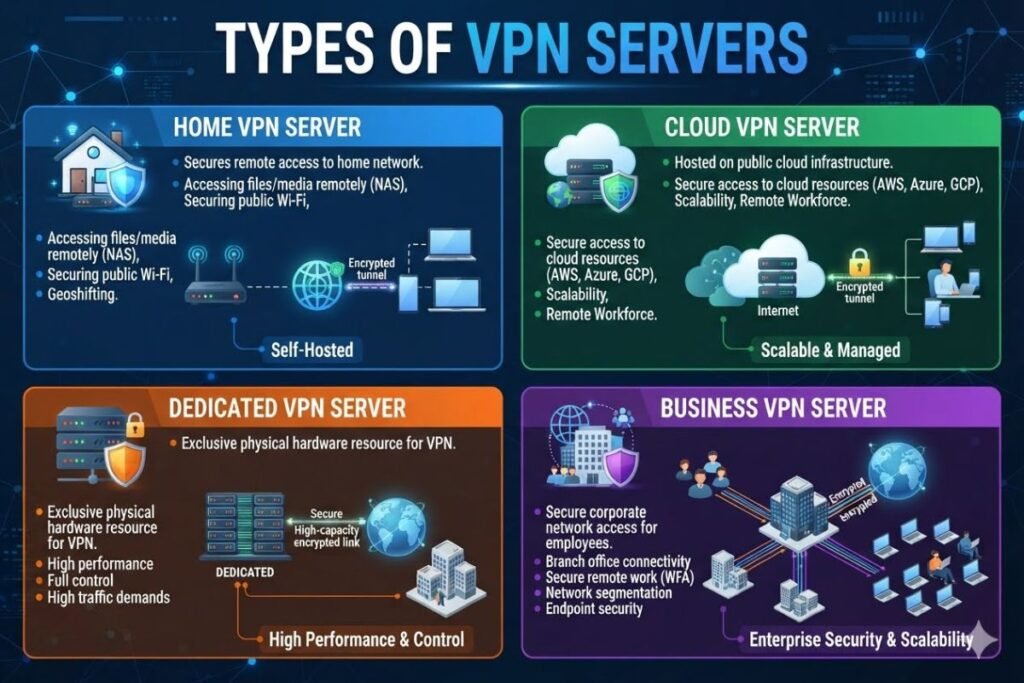
Different VPN servers are designed for different needs. Choosing the right type depends on how you plan to use your VPN.
Home VPN Server
A home vpn server is one of the most popular choices for individuals. It runs on hardware located in your home, such as a desktop computer, mini PC, NAS, or router.
Benefits include:
- Access home files remotely
- Use your home internet while traveling
- Control your own security
- Avoid subscription fees
This setup is ideal for personal use and remote access.
Cloud VPN Server
A cloud-hosted VPN runs on providers such as AWS, DigitalOcean, Azure, or Google Cloud.
Advantages include:
- High uptime
- Fast internet
- Easy scaling
- Global availability
Cloud servers work well for businesses and frequent travelers.
Dedicated VPN Server
A dedicated vpn server is reserved entirely for your use instead of being shared with other users.
Benefits include:
- Better performance
- More privacy
- Predictable speeds
- Higher reliability
Dedicated servers are widely used by businesses and advanced users.
Business VPN Server
Organizations often deploy VPN servers for:
- Remote employees
- Secure office access
- Protected file sharing
- Internal applications
- Corporate communication
Business VPNs typically include centralized user management and advanced security policies.
Requirements Before You Start
Before creating your VPN Server, gather the necessary hardware, software, and network information.
Hardware Requirements
You can use:
- Desktop PC
- Laptop
- Raspberry Pi
- NAS
- Mini PC
- Cloud server
- Router with VPN support
Network Requirements
Make sure you have:
- Stable broadband connection
- Router access
- Administrator privileges
- Public IP address or Dynamic DNS
- Open firewall ports if required
Software Requirements
Depending on your setup, you’ll need vpn server software such as:
- WireGuard
- OpenVPN
- SoftEther VPN
- IPsec
- OpenVPN Access Server
Choosing reliable software is essential for long-term stability and security.
Choosing the Right Hardware

Your hardware directly affects VPN performance. The good news is that you don’t need expensive equipment for a personal setup.
Entry-Level Setup
Suitable for:
- One to five users
- Remote browsing
- Home access
Recommended hardware:
- Raspberry Pi 5
- Intel N100 mini PC
- Older desktop computer
Mid-Range Setup
Suitable for:
- Families
- Small businesses
- Multiple devices
- Media streaming
Recommended hardware:
- Intel Core i5
- AMD Ryzen 5
- Synology NAS
High-End Setup
Ideal for:
- Large file transfers
- Heavy traffic
- Business environments
- Multiple simultaneous users
Recommended hardware:
- Intel Core i7 or newer
- AMD Ryzen 7 or newer
- Dedicated server hardware
When choosing hardware for your setup, you may also want to explore the best display technology in 2026 to understand which options offer the best viewing experience.
Choosing the Best VPN Protocol

A VPN protocol determines how your encrypted connection is established and maintained. Selecting the right protocol affects speed, security, and compatibility.
WireGuard
A wireguard vpn server is one of the best options in 2026. It offers modern encryption, excellent performance, and a simple configuration process, making it suitable for both beginners and experienced users.
Best for:
- High-speed connections
- Mobile devices
- Gaming
- Everyday browsing
OpenVPN
An open source vpn server based on OpenVPN remains a trusted choice for organizations and advanced users. It supports strong encryption, extensive customization, and works across nearly every major operating system.
Best for:
- Cross-platform compatibility
- Enterprise environments
- Flexible configurations
IPsec/IKEv2
This protocol combination is known for maintaining stable connections, especially on smartphones and tablets that frequently switch between Wi-Fi and mobile networks.
Best for:
- Mobile users
- Business travel
- Reliable reconnections
PPTP
A pptp vpn server is easy to configure but is no longer recommended for protecting sensitive data because it uses outdated security methods. It may still be used with legacy devices that do not support newer protocols.
Best for:
- Legacy compatibility only
Step-by-Step Guide to Create Your Own VPN Server
Now that you understand the basics, it’s time to build your own VPN Server. The setup process depends on your operating system and hardware, but the overall workflow is similar across all platforms.
In general, you’ll:
- Choose your hardware or cloud server.
- Install your preferred VPN operating environment.
- Install vpn server software.
- Configure security settings.
- Open the required firewall ports.
- Create user accounts.
- Connect your client devices.
- Test the VPN connection.
The following sections explain each setup in detail.
How to Set Up a Windows VPN Server
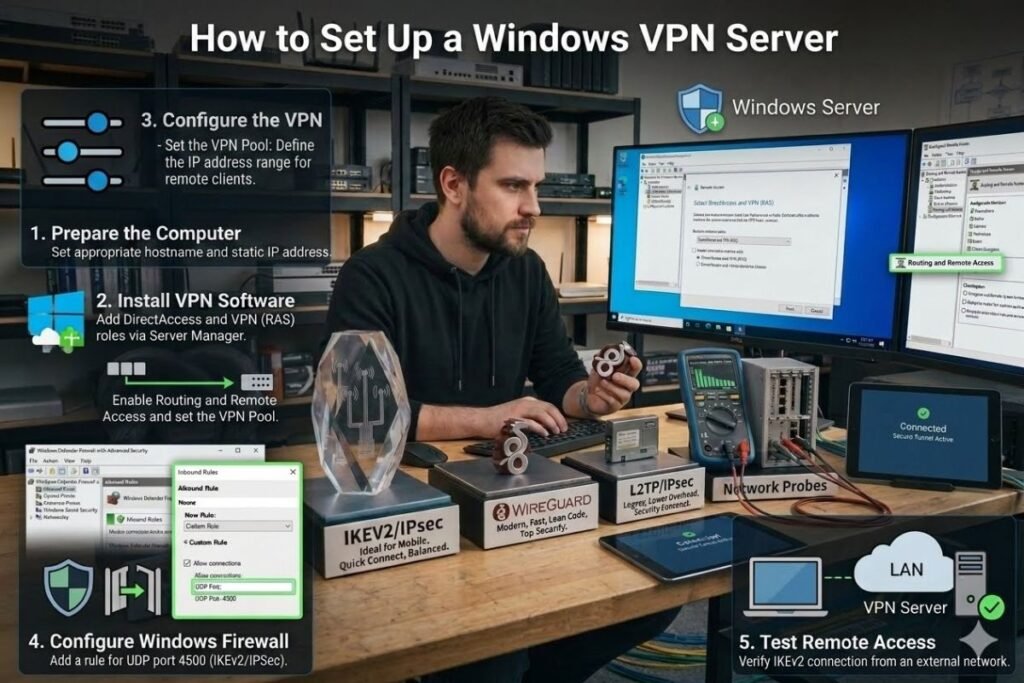
A windows vpn server is one of the easiest options for beginners because many people already have a Windows PC at home.
Step 1: Prepare the Computer
Before installation:
- Update Windows completely.
- Enable Windows Defender Firewall.
- Assign a static local IP address.
- Create an administrator account.
- Ensure your internet connection is stable.
Step 2: Install VPN Software
Choose reliable vpn server software such as:
- WireGuard
- OpenVPN
- SoftEther VPN
- OpenVPN Access Server
Download the installer from the official website and follow the installation wizard.
Step 3: Configure the VPN
After installation:
- Create server keys or certificates.
- Select the VPN protocol.
- Define the VPN subnet.
- Create user profiles.
- Save the configuration.
Step 4: Configure Windows Firewall
Allow the VPN application through Windows Firewall.
Open only the required ports.
For example:
- WireGuard → UDP 51820
- OpenVPN → UDP/TCP 1194
Avoid opening unnecessary ports to reduce security risks.
Step 5: Test Remote Access
Connect using another device on mobile data or another internet connection.
Verify:
- Internet access
- Home network access
- File sharing
- Remote desktop (if enabled)
How to Build a Linux VPN Server
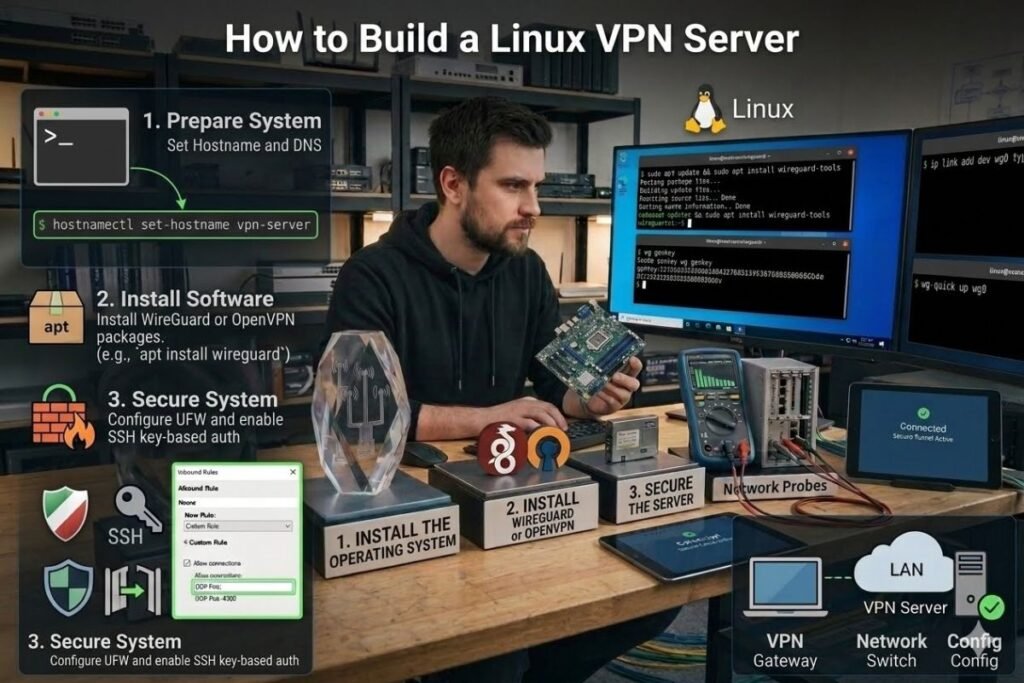
A Linux VPN server delivers outstanding performance, reliability, and flexibility. Many professionals prefer Linux because it consumes fewer system resources and receives frequent security updates.
Popular Linux distributions include:
- Ubuntu Server
- Debian
- Rocky Linux
- AlmaLinux
- Fedora Server
Install the Operating System
Install a minimal server version.
Recommended settings:
- Static IP address
- SSH enabled
- Automatic security updates
- Firewall enabled
Install WireGuard or OpenVPN
Most Linux distributions allow installation through their package manager.
After installation:
- Generate encryption keys.
- Configure server settings.
- Enable IP forwarding.
- Start the VPN service.
- Enable automatic startup after reboot.
Secure the Server
Good security practices include:
- Disable password-based SSH logins.
- Use SSH keys.
- Enable Fail2Ban.
- Keep packages updated.
- Monitor login attempts.
- Restrict unnecessary services.
How to Create a Raspberry Pi VPN Server
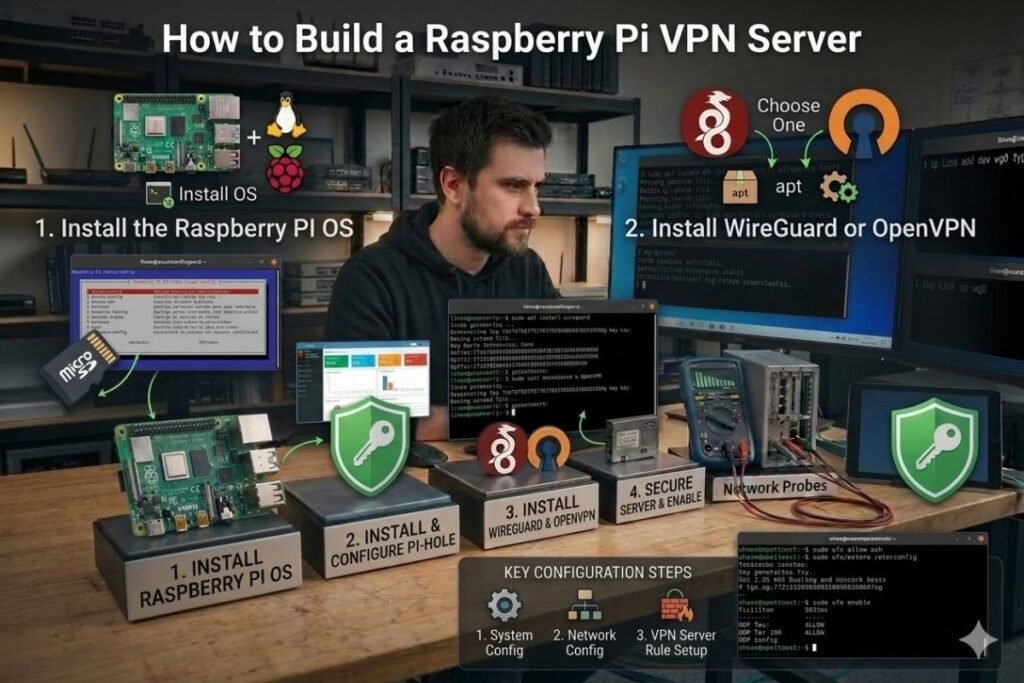
A raspberry pi vpn server is affordable, energy-efficient, and surprisingly powerful for home users.
Many people leave their Raspberry Pi running 24/7 with very little electricity usage.
Hardware You’ll Need
Recommended equipment:
- Raspberry Pi 5
- Official power supply
- microSD card (32GB or larger)
- Ethernet connection
- Cooling case
Install Raspberry Pi OS
Install the latest Raspberry Pi OS Lite version.
Then:
- Update packages.
- Enable SSH.
- Assign a static IP.
- Change the default password.
Install VPN Software
WireGuard is highly recommended.
Benefits include:
- Fast performance
- Low CPU usage
- Easy configuration
- Modern encryption
Once installed:
- Generate keys.
- Configure peers.
- Start the VPN service.
- Test remote access.
Best Uses
A Raspberry Pi VPN is excellent for:
- Remote home access
- Family VPN
- Personal browsing
- Smart home control
- Small office networking
Setting Up a Synology VPN Server
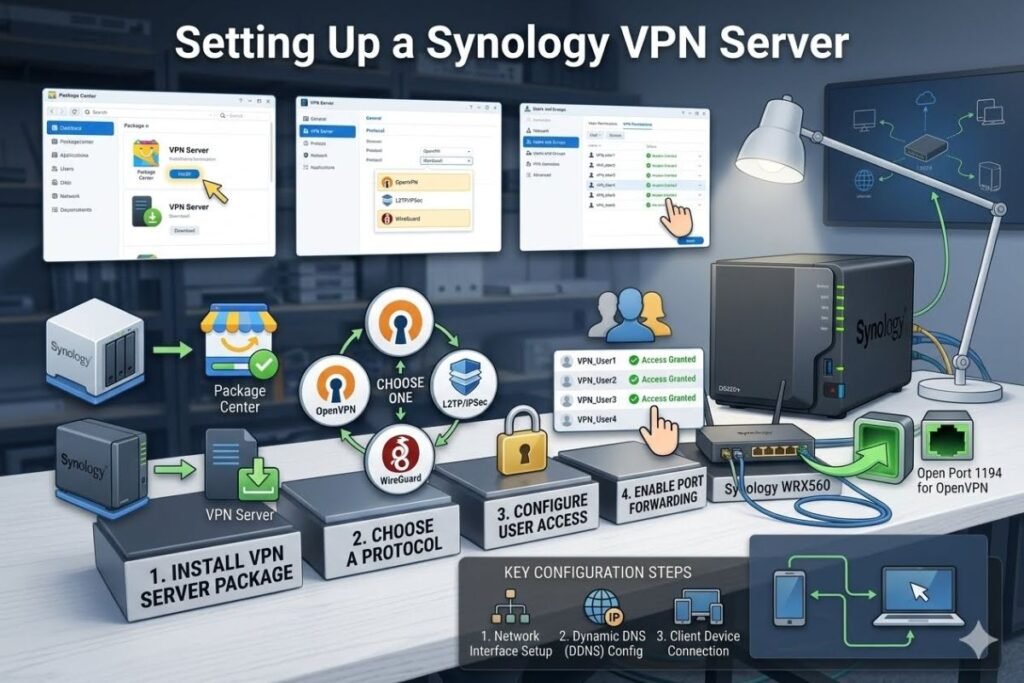
Many people already own a Synology NAS, making a Synology VPN server an excellent solution. Instead of buying another computer, your NAS can securely host your VPN.
Install VPN Server Package
Within DSM:
- Open Package Center.
- Install VPN Server.
- Launch the application.
Choose a Protocol
Synology supports several VPN options. WireGuard may require community solutions, while OpenVPN remains one of the most common choices due to its compatibility and security.
Configure User Access
Grant VPN permissions only to authorized users.
Create:
- Strong passwords
- Separate accounts
- Limited privileges
Never share administrator credentials.
Enable Port Forwarding
Configure your router to forward only the required VPN port to the Synology NAS. Afterward, test remote connectivity using another internet connection.
Setting Up a Cloud VPN Server
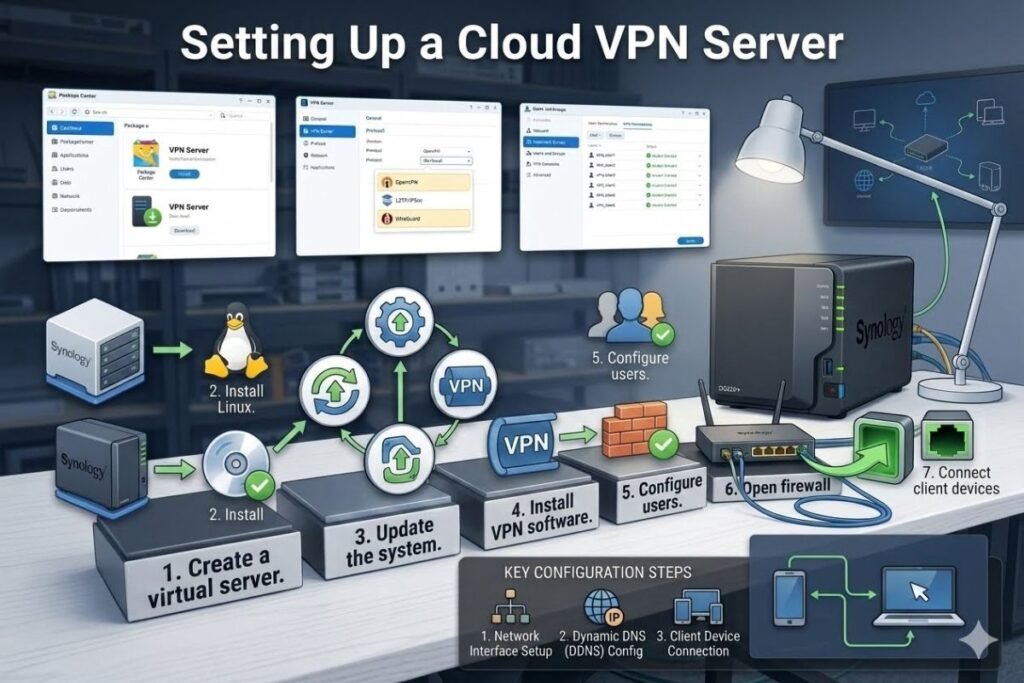
Instead of hosting a VPN at home, many users deploy a VPN server in the cloud.
Popular providers include:
- Amazon Web Services (AWS)
- Microsoft Azure
- Google Cloud Platform
- DigitalOcean
- Linode
- Vultr
Cloud hosting provides excellent uptime and global accessibility.
Advantages of Cloud Hosting
Benefits include:
- Fast internet connectivity
- High availability
- Reliable infrastructure
- Easy scalability
- Global data centers
Basic Deployment Steps
- Create a virtual server.
- Install Linux.
- Update the system.
- Install VPN software.
- Configure users.
- Open firewall ports.
- Connect client devices.
Configuring Your VPN Server Address
Every client needs a vpn server address to connect successfully.
This address can be:
- Public IP address
- Domain name
- Dynamic DNS hostname
Example:
- vpn.example.com
- 203.0.113.10
Using a domain name is easier because you won’t need to remember a long IP address.
Static IP vs Dynamic IP
Static IP:
- Never changes
- Easier to configure
- Ideal for businesses
Dynamic IP:
- Changes periodically
- Common for home internet
- Usually requires Dynamic DNS
Dynamic DNS Setup
Many home internet providers change your public IP address regularly. Dynamic DNS solves this problem.
Popular Dynamic DNS providers include:
- DuckDNS
- No-IP
- Dynu
Benefits include:
- Easy remote access
- Consistent hostname
- Automatic updates
- Better reliability
Router Configuration
Your router plays a major role in making your VPN Server accessible from outside your home network.
Enable Port Forwarding
Forward only the VPN port.
Examples:
| VPN Protocol | Default Port |
| WireGuard | UDP 51820 |
| OpenVPN | UDP/TCP 1194 |
| IPsec | UDP 500 & 4500 |
Avoid forwarding unnecessary ports.
Reserve Local IP Address
Assign your VPN server a fixed internal IP address. This prevents router reboots from changing the server’s address.
Configuring VPN Clients
Once the server is running, configure each client device.
Supported platforms include:
- Windows
- macOS
- Linux
- Android
- iPhone
- iPad
Each client requires:
- Server address
- Encryption keys or certificates
- User credentials
- VPN profile
For additional device security, you can also explore our guide to the most secure phones in 2026 and learn which smartphones offer stronger privacy and protection.
Testing the Connection
After connecting:
Verify:
- Internet browsing
- Home network access
- File sharing
- Ping response
- DNS resolution
- Streaming performance
If everything works correctly, your VPN setup is complete.
Security Best Practices
Running your own VPN Server requires ongoing maintenance. Following security best practices helps protect your network and connected devices.
Use Strong Authentication
Always create long, unique passwords and, when available, enable multi-factor authentication (MFA). For advanced setups, use certificates or cryptographic keys instead of passwords alone.
Keep Software Updated
Regularly install updates for:
- Your operating system
- vpn server software
- Router firmware
- Security tools
Updates often fix newly discovered vulnerabilities and improve stability.
Disable Unused Services
Turn off services that you do not use. Fewer running services reduce the attack surface and improve overall server performance.
Monitor Server Activity
Review logs periodically to identify:
- Failed login attempts
- Unusual traffic
- Unauthorized access
- Configuration errors
Early detection allows you to respond quickly to potential threats.
Back Up Your Configuration
Keep secure backups of your VPN configuration, encryption keys, and certificates. Store backups in a safe location so you can restore your server quickly if hardware fails or settings become corrupted.
Choosing the Best VPN Server for Your Needs
Choosing the right VPN setup depends on how you intend to use it. Home users, remote workers, gamers, and business owners may have different performance and security needs. Before creating your own VPN Server, evaluate the expected number of users, available internet speed, security requirements, and hardware resources to ensure reliable performance.
Best for Home Users
A home vpn server is perfect if you want secure access to your home network while traveling.
It allows you to:
- Access personal files remotely
- Connect securely to smart home devices
- Browse safely on public Wi-Fi
- Stream content through your home internet connection
A Raspberry Pi, mini PC, or NAS device is usually enough for this purpose.
Best for Small Businesses
Small businesses should prioritize:
- Strong encryption
- Multiple user accounts
- Centralized management
- Easy backups
- Reliable uptime
A Linux server or cloud-based VPS running WireGuard or OpenVPN is an excellent choice.
Best for Large Organizations
Organizations with many employees should consider:
- Dedicated hardware
- High-speed internet
- Multi-factor authentication
- Network monitoring
- Automatic updates
- Load balancing
- High availability
A dedicated VPN server provides better performance and improved security for enterprise environments.
Free VPN Server vs Self-Hosted VPN
Before choosing which solution is best for them, many customers compare self-hosted and free VPN servers.
| Feature | Free VPN | Self-Hosted VPN Server |
| Monthly Cost | Free | Usually low after setup |
| Privacy | Limited | Full control |
| Speed | Often shared | Depends on your internet |
| Customization | Very limited | Extensive |
| Advertisements | Sometimes | None |
| Data Control | Provider-managed | User-managed |
| Security | Varies | Configurable |
While free VPN services can be useful for occasional browsing, they often have bandwidth limits, fewer server choices, or privacy trade-offs. Running your own VPN gives you complete control over your data and security settings.
Understanding VPN Server Lists
A VPN server list contains different server locations or connection points that users can select when accessing a virtual private network. Commercial VPN providers may operate hundreds or thousands of servers across multiple countries, allowing users to choose locations based on speed, accessibility, or privacy needs.
For a self-hosted setup, the available server list is generally smaller because you are responsible for managing the infrastructure. However, you can deploy servers in different locations when necessary, including at home, in an office, or on cloud hosting platforms.
Some websites offer free VPN server lists, but public connections can involve security and reliability risks. Unknown servers may provide weak protection, slow performance, or questionable privacy practices. Always research the provider and review its security measures before establishing a connection to a VPN Server.
Commercial VPN Services vs Your Own VPN Server
Commercial VPN providers remain popular because they offer many global server locations and simple applications. For example, services with extensive proton vpn server locations allow users to choose servers in many countries without managing hardware. Similarly, if you need a uk vpn server for accessing UK-based services while traveling, a commercial VPN may be more convenient than building a second server in that region.
However, your own VPN Server provides several advantages:
- Complete ownership of your data
- No monthly subscription in many cases
- Custom security settings
- Remote access to your home or office network
- Better control over connected devices
The best option depends on your goals. Many advanced users even combine a self-hosted VPN with a commercial VPN service for maximum flexibility.
Optimizing VPN Server Performance
After setting up your VPN Server, you can improve its speed and reliability with a few simple adjustments.
Upgrade Your Internet Connection
A VPN can only perform as well as your internet connection. Pay special attention to upload speed because it directly affects remote users.
Choose Modern Hardware
A faster processor can handle encryption more efficiently. If multiple users connect simultaneously, additional RAM and a multi-core CPU will improve performance.
Use WireGuard
A wireguard vpn server generally provides higher speeds and lower latency than many older VPN protocols while maintaining strong security.
Select Nearby Server Locations
Latency is usually lower when users connect to a server located closer to their physical location. If you travel frequently, consider deploying additional servers in cloud regions near your regular destinations to maintain faster and more responsive connections.
Keep Software Updated
Updating your operating system and vpn server software helps improve stability, performance, and security.
Common VPN Server Problems and Solutions
Even a well-configured VPN Server may occasionally encounter issues. Here are some common problems and practical solutions.
| Problem | Possible Solution |
| Cannot connect | Check firewall rules and port forwarding |
| Slow speed | Test internet bandwidth and CPU usage |
| Authentication errors | Verify usernames, passwords, or certificates |
| DNS issues | Configure secure DNS settings |
| Frequent disconnects | Update VPN software and router firmware |
| High latency | Connect to a closer server or improve internet quality |
Regular monitoring and timely updates can prevent many of these issues.
VPN Server Security Checklist
Examine this checklist prior to using your VPN server every day:
- Use strong passwords
- Enable multi-factor authentication where possible
- Update the operating system regularly
- Keep VPN server software up to date
- Use modern encryption such as AES-256 or ChaCha20
- Disable unused services
- Monitor server logs
- Back up configuration files
- Restrict administrative access
- Test your VPN periodically from an external network
Following these practices helps maintain a secure and reliable VPN environment.
Who Should Create Their Own VPN Server?
Building a VPN-Server is beneficial for many types of users.
Home Users
If you want secure access to your home network, media library, or smart devices while traveling, a personal VPN is an excellent choice.
Remote Workers
Professionals can securely access office resources without exposing sensitive information on public Wi-Fi.
Gamers
Some gamers use a VPN for secure connections, though a VPN may increase latency depending on server location.
Small Businesses
Businesses can provide secure remote access for employees while keeping company data protected.
Technology Enthusiasts
Anyone interested in networking, cybersecurity, or self-hosting will gain valuable skills by creating and managing a VPN-Server.
Advantages and Disadvantages of Running Your Own VPN Server
| Advantages | Disadvantages |
| Full privacy control | Initial setup takes time |
| No recurring subscription in many cases | Requires maintenance |
| Secure remote access | Depends on your home internet speed |
| Flexible configuration | Limited geographic server locations |
| Better control over users | Hardware or cloud costs may apply |
| Learn networking skills | Requires periodic updates |
Understanding both the benefits and limitations helps you decide whether a self-hosted VPN is the right solution.
Final Thoughts
A virtual private network gives you greater control over network security, remote access, and online privacy. Modern technology has made deployment easier than ever, whether you choose a Windows, Linux, Raspberry Pi, or Synology-based setup.
Modern protocols such as WireGuard deliver excellent performance alongside strong encryption, making them suitable for both beginners and experienced administrators. Although older protocols like PPTP may still support certain legacy devices, modern alternatives offer significantly stronger security and should be preferred whenever possible.
When comparing commercial VPN services with a self-hosted setup, consider your specific priorities. Commercial providers offer extensive connection options and locations around the world, while a self-managed solution provides greater ownership, customization, and control over your network environment.
By following this create own vpn-server setup guide 2026, you can build a secure VPN environment that protects your data, enables safe remote access, and provides long-term value. Keep your server updated, monitor its performance, and apply strong security practices to enjoy a reliable VPN experience for years to come.
For more technology tutorials, networking guides, and hardware reviews, consider exploring Tech All World and Techh AtoZ. If your travels take you to new destinations after securing your connection, Beach Near can help you discover beaches around the world, while Restaurent.net offers useful restaurant recommendations.
Frequently Asked Questions
Q. Is creating your own VPN Server legal?
Ans: Yes. In most countries, creating and using your own VPN Server is legal. However, you should always follow the laws and regulations of your country and avoid using a VPN for illegal activities.
Q. Which VPN protocol is best in 2026?
Ans: For most users, a wireguard vpn server is the best option because it offers high performance, modern encryption, and a simple configuration process. OpenVPN is another excellent choice for advanced compatibility.
Q: Can I create a VPN Server without buying new hardware?
Ans: Yes. You can use an existing desktop computer, an older laptop, a NAS device, or even a cloud server. Many people successfully build a home vpn server using hardware they already own.
Q. Is a free VPN Server better than hosting my own?
Ans: A free VPN option can work well for occasional use, but setting up your own solution usually offers stronger privacy, greater customization, and complete control over your data. Before connecting, always check the reliability and security of any free VPN server list to avoid potential privacy or security risks.
Q. Can I use a VPN Server while traveling internationally?
Ans: Yes. As long as your server is accessible through the correct vpn server address, you can securely connect from almost anywhere with an internet connection, subject to local laws and network restrictions.
Q. How often should I update my VPN Server?
Ans: You should install operating system and vpn server software updates as soon as stable releases become available. Regular updates improve security, fix bugs, and help maintain reliable performance.





3 Comments