 -by
-by Streaming has become one of the most exciting ways to share gameplay with people around the world. Whether you create content on Twitch, YouTube, Facebook Gaming, or Kick, your Gaming PC plays the biggest role in delivering smooth gameplay and a professional-quality stream.
Many streamers invest thousands of dollars in powerful hardware but still experience dropped frames, lag spikes, blurry video, or poor audio quality. The problem often isn’t the hardware itself—it’s how the system is optimized. A properly configured Gaming PC can outperform a much more expensive computer that isn’t optimized.
You’ll learn which hardware matters most, how streaming software uses system resources, and the best settings for stable performance. Whether you own a prebuilt gaming pc, a custom gaming pc, or you’re planning a gaming pc build, these techniques will help you stream at higher quality while maintaining excellent in-game performance.
If you’re looking for more technology buying guides and PC optimization tips, explore Tech All World and Techh AtoZ, where we regularly publish helpful technology resources for gamers and creators.
Why Optimizing a Gaming PC Matters for Streaming
Many people think buying the best gaming pc automatically guarantees a perfect streaming experience. In reality, streaming adds another demanding workload on top of your game.
While playing, your computer must simultaneously:
- Render the game
- Encode live video
- Capture audio
- Process overlays
- Display alerts
- Upload data to streaming platforms
- Run background applications
Without optimization, even premium systems like an Alienware Gaming PC, Skytech Gaming PC, CyberPower Gaming PC, or iBUYPOWER Gaming PC can experience:
- FPS drops
- Stuttering gameplay
- High CPU usage
- GPU overload
- Audio synchronization issues
- Stream buffering
- Encoder overload warnings
Optimization ensures every component works together efficiently instead of competing for resources.
What Makes a Good Gaming PC for Streaming?
A streaming computer differs from a standard gaming computer because it must balance gaming performance and content creation.
The ideal Gaming PC includes:
- A modern multi-core processor
- A powerful graphics card with hardware encoding
- Fast DDR4 or DDR5 RAM
- NVMe SSD storage
- Stable internet connection
- Efficient cooling
- Reliable power supply
Even a budget gaming pc or cheap gaming pc can produce excellent streams if you optimize it correctly.
Minimum vs Recommended Gaming PC Specifications
| Component | Minimum | Recommended |
| CPU | 6-core processor | 8–16-core processor |
| GPU | GTX 1660 Super / RX 6600 | RTX 4070 or better |
| RAM | 16 GB | 32 GB |
| Storage | 500 GB SSD | 1 TB NVMe SSD |
| Internet Upload | 10 Mbps | 25 Mbps+ |
| PSU | 550W | 750W Gold |
A balanced system often performs better than one with only a high-end graphics card. A high-quality monitor is just as important as a powerful GPU and CPU when streaming, as better display technology improves color accuracy, motion clarity, and overall viewing comfort. To choose the right screen, check out our guide on the best display technologies and learn which panel type is ideal for gaming and content creation.
Understanding How Streaming Uses Your Hardware
Streaming software such as OBS Studio captures your screen, compresses the video, and sends it to the streaming platform in real time.
Each step relies on different hardware components.
CPU Responsibilities
The processor manages:
- Game physics
- Artificial intelligence
- Streaming software
- Audio processing
- Browser sources
- Background applications
Games like Microsoft Flight Simulator, Cities: Skylines II, and Civilization VII place significant demands on the CPU. If the processor is already near full utilization, software-based encoding can reduce frame rates noticeably.
GPU Responsibilities
Your graphics card handles:
- Rendering the game
- Video encoding (NVENC, AV1, AMD AMF, Intel Quick Sync)
- Hardware acceleration
- Visual effects
Modern GPUs include dedicated encoding hardware, allowing the Gaming PC to stream with minimal impact on gameplay.
RAM Responsibilities
Memory stores active game assets, browser tabs, streaming software, overlays, and operating system processes.
For modern streaming:
- 16 GB is acceptable.
- 32 GB provides smoother multitasking.
- 64 GB benefits advanced creators who edit videos, use virtual machines, or run multiple applications simultaneously.
Storage Responsibilities
Fast storage reduces:
- Loading times
- Texture streaming delays
- Recording interruptions
NVMe SSDs significantly outperform traditional hard drives and are highly recommended for both gaming and streaming.
Choosing the Right CPU for Streaming
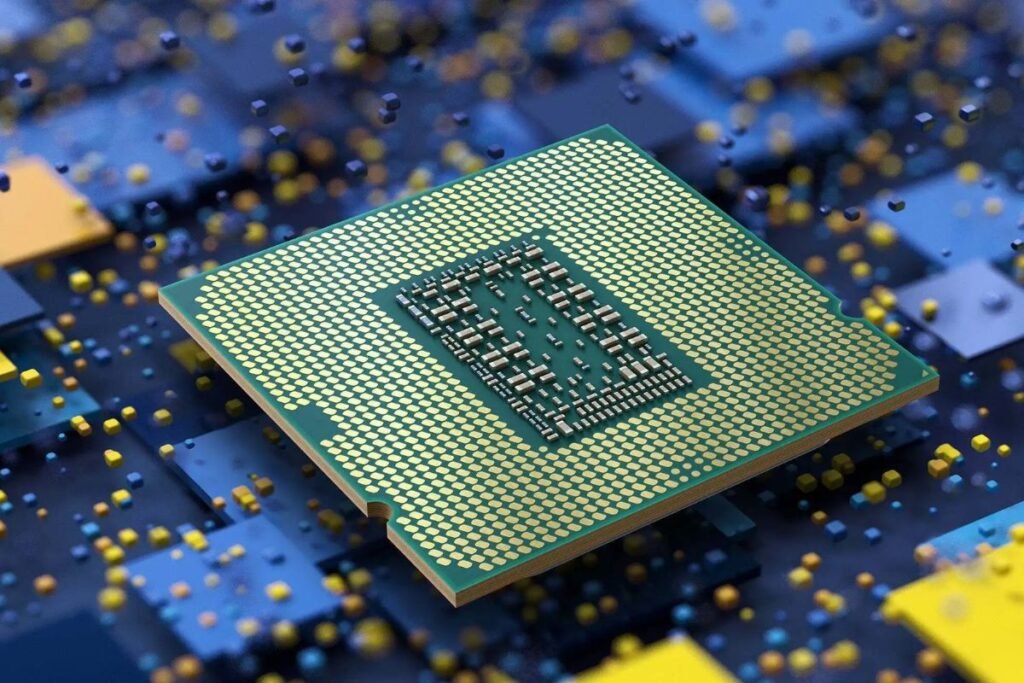
The processor remains one of the most important components in any Gaming PC.
Streaming benefits from:
- Higher core counts
- Faster clock speeds
- Larger cache
- Efficient multitasking
Popular choices include:
AMD
- Ryzen 7 7700X
- Ryzen 7 9800X3D
- Ryzen 9 7900X
- Ryzen 9 9950X
Intel
- Core i7 series
- Core Ultra 7
- Core Ultra 9
- Core i9 series
The ideal processor depends on your gaming resolution, streaming quality, and budget.
CPU Encoding vs GPU Encoding
One of the first decisions every streamer makes is choosing between CPU and GPU encoding.
CPU Encoding (x264)
Advantages:
- Excellent image quality
- Flexible presets
- Great for high-core processors
Disadvantages:
- High CPU usage
- Lower gaming FPS
- Increased system temperatures
GPU Encoding (NVENC, AV1, AMD AMF)
Advantages:
- Low CPU usage
- Better gaming performance
- Stable streaming
- Easy to configure
Disadvantages:
- Quality varies by GPU generation
- Older GPUs may produce less efficient compression
For most streamers, modern GPU encoding offers the best balance of performance and quality.
Selecting the Best Graphics Card
The graphics card has become increasingly important because modern encoders deliver excellent quality while keeping CPU usage low.
Look for:
- AV1 hardware encoding support
- 12 GB or more VRAM for demanding games
- Efficient cooling
- Updated drivers
- PCIe Gen 4 or Gen 5 compatibility
Examples include:
- NVIDIA GeForce RTX 4070 Super
- RTX 4080 Super
- RTX 4090
- AMD Radeon RX 7900 XT
- Intel Arc B-series (with AV1 support)
Whether you buy a pre built gaming pc, a gaming pc for sale, or build your own system, prioritize a graphics card with a modern hardware encoder.
How Much RAM Does a Gaming PC Need for Streaming?
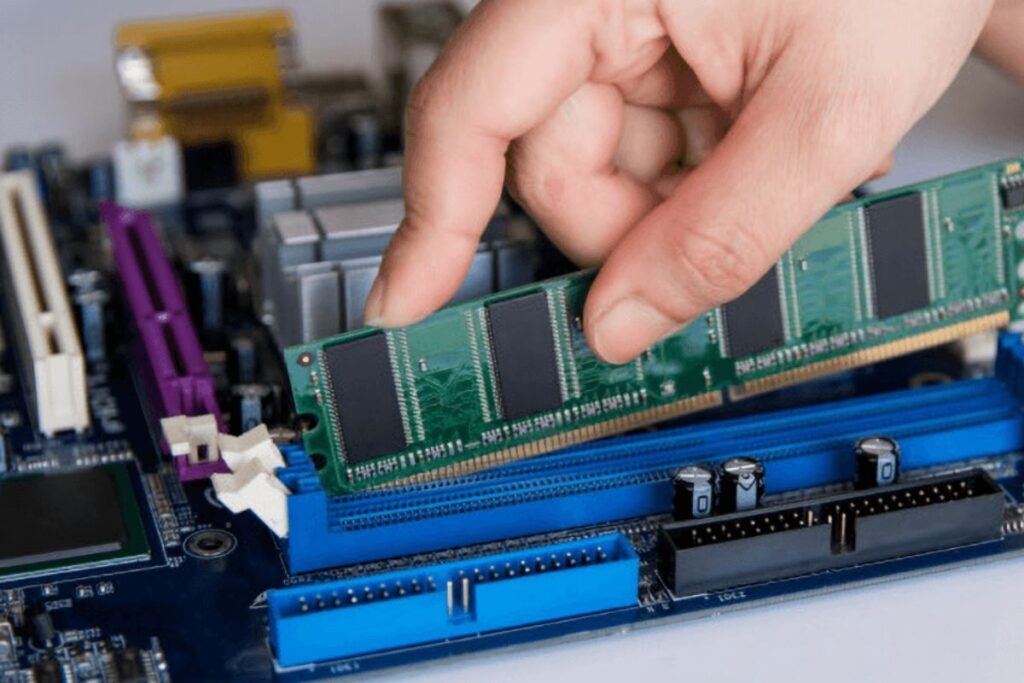
Memory shortages often cause unexpected slowdowns.
General recommendations:
- 16 GB – Entry-level streaming.
- 32 GB – Ideal for most gamers and creators.
- 64 GB – Professional workflows with editing and multiple applications.
Fast DDR5 memory also improves responsiveness on newer platforms.
Why an NVMe SSD Is Essential
A solid-state drive does more than shorten game loading times.
It also helps your Gaming PC:
- Launch OBS Studio quickly
- Record high-bitrate gameplay
- Reduce texture pop-in
- Improve Windows responsiveness
- Speed up software updates
Install Windows, your streaming software, and your most-played games on an NVMe SSD for the best overall experience.
Should You Build or Buy a Gaming PC?
Many gamers wonder whether to assemble their own system or purchase a ready-made computer.
Build Your Own
A gaming pc build offers:
- Better value
- Easier upgrades
- Full hardware customization
- Better cooling options
- Component flexibility
Buy a Prebuilt
A prebuilt gaming pc is ideal if you want:
- Plug-and-play convenience
- Manufacturer warranty
- Professional cable management
- Pre-installed operating system
- Technical support
The best prebuilt gaming pc should still allow future upgrades to RAM, storage, and graphics.
Choosing the Right Form Factor
Different form factors suit different needs.
Full Tower
Best for:
- Maximum airflow
- Large GPUs
- Extensive upgrades
- High-performance streaming setups
Mid Tower
The most popular choice because it balances size, cooling, and expandability.
Small Form Factor
A mini gaming pc saves space but often limits cooling and upgrade options. It can still handle streaming if equipped with efficient components and proper airflow.
Windows Optimization for a Gaming PC
A clean and optimized Windows installation is the foundation of a high-performing Gaming PC. Even the most powerful hardware can suffer from stuttering, dropped frames, or inconsistent performance if the operating system is overloaded with unnecessary processes.
Windows runs dozens of background services, startup applications, and scheduled tasks that consume valuable CPU, RAM, storage, and network resources. Optimizing these settings ensures your games and streaming software receive the highest priority.
Whether you use a custom gaming pc, prebuilt gaming pc, or budget gaming pc, these optimizations can significantly improve your streaming experience.
Update Windows Before Every Streaming Session
Microsoft regularly releases updates that improve:
- Gaming performance
- Security
- Driver compatibility
- Hardware scheduling
- Bug fixes
- System stability
Before updating:
- Open Settings → Windows Update.
- Check for available updates.
- Install important updates.
- Restart your computer.
Avoid installing large feature updates immediately before an important stream. Test your system after major updates to ensure compatibility with your games and streaming software.
Install the Latest Graphics Drivers
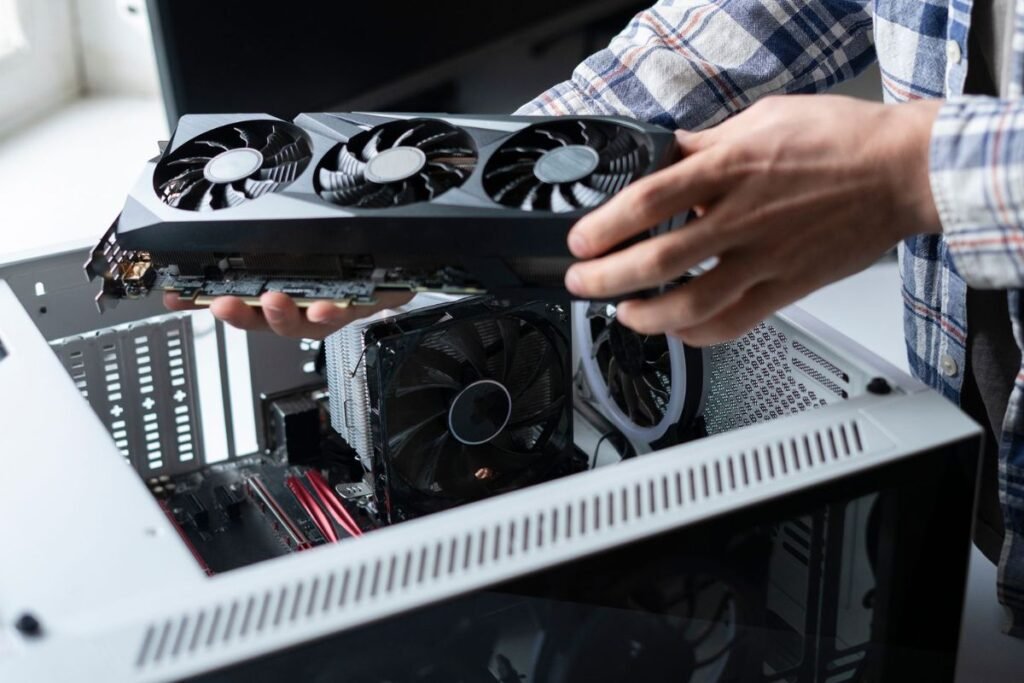
Graphics drivers directly affect gaming performance and streaming quality.
Updated drivers provide:
- Better FPS
- Improved hardware encoding
- Lower latency
- New game optimizations
- Bug fixes
Download drivers directly from your GPU manufacturer’s website instead of relying solely on Windows Update.
For NVIDIA users:
- Enable the latest NVENC or AV1 encoder support.
- Keep GeForce Experience or the NVIDIA App updated if you use them.
For AMD and Intel users:
- Install the latest Adrenalin or Arc graphics drivers to benefit from encoding improvements and performance optimizations.
Keep Chipset Drivers Up to Date
Many users overlook chipset drivers, but they play a critical role in system stability.
Updated chipset drivers improve:
- CPU scheduling
- PCIe communication
- USB stability
- Power management
- Storage performance
Download the latest chipset drivers from your motherboard manufacturer’s support page or directly from AMD or Intel.
Use the High Performance or Ultimate Performance Power Plan
Windows power-saving modes can reduce CPU clock speeds and introduce performance inconsistencies.
To change your power plan:
- Open Control Panel → Power Options.
- Select High Performance or Ultimate Performance (if available).
- Restart your PC.
This allows your Gaming PC to maintain higher clock speeds during gaming and streaming sessions.
Tip: On laptops or a portable gaming pc, use the manufacturer’s performance mode while plugged into power for the best results.
Enable Game Mode
Windows Game Mode prioritizes gaming processes and reduces interruptions from background tasks.
To enable it:
- Open Settings → Gaming.
- Select Game Mode.
- Turn it on.
Game Mode can help reduce background activity, improving frame consistency during gameplay and streaming.
Enable Hardware-Accelerated GPU Scheduling (HAGS)
Hardware-Accelerated GPU Scheduling allows the graphics card to manage its own memory more efficiently.
Benefits may include:
- Lower input latency
- Smoother gameplay
- Reduced CPU overhead
- Better multitasking while streaming
To enable HAGS:
- Go to Settings → System → Display.
- Click Graphics.
- Select Default Graphics Settings.
- Turn on Hardware-Accelerated GPU Scheduling.
- Restart your computer.
Compatibility depends on your GPU and driver version.
Disable Unnecessary Startup Programs
Many applications launch automatically when Windows starts, consuming valuable system resources.
Common examples include:
- Messaging apps
- Cloud storage clients
- RGB control software
- Game launchers
- Update utilities
To manage startup apps:
- Press Ctrl + Shift + Esc to open Task Manager.
- Go to the Startup tab.
- Disable applications you don’t need during streaming.
Reducing startup programs speeds up boot times and frees memory for your Gaming PC.
Close Background Applications Before Streaming
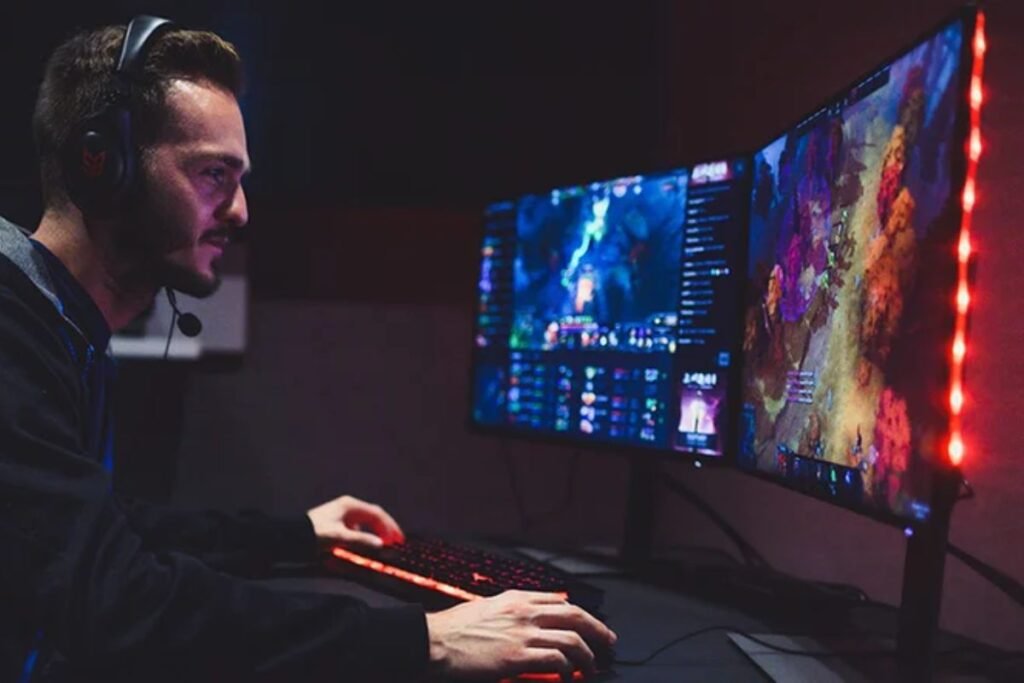
Before launching your game and streaming software, close applications that aren’t essential.
Examples include:
- Web browsers with many tabs
- Video editors
- Torrent clients
- File synchronization tools
- Unused game launchers
This reduces CPU and RAM usage, allowing your Gaming PC to focus on gaming and encoding.
Optimize Virtual Memory (Page File)
Windows uses virtual memory when physical RAM becomes full.
For most users:
- Leave the page file on System Managed.
If you have multiple drives:
- Place the page file on your fastest SSD.
Avoid disabling the page file entirely, as this can cause crashes in memory-intensive games.
Keep Storage Clean
A nearly full drive can reduce performance and increase loading times. Maintain at least 20% free space on your SSD.
Regularly:
- Delete temporary files.
- Empty the Recycle Bin.
- Remove unused applications.
- Clear download folders.
Use Windows Storage Sense to automate cleanup tasks.
Disable Unnecessary Visual Effects
Visual effects such as window animations, fade transitions, and transparency can place extra demand on your computer’s CPU and GPU. Reducing these effects helps Windows run more smoothly, particularly on entry-level gaming systems.
To improve performance:
- Open the Adjust the appearance and performance of Windows settings.
- Select Adjust for best performance, or disable only the visual effects you don’t need.
- Leave Smooth edges of screen fonts enabled to keep text clear and easy to read.
These small changes can make Windows feel faster and more responsive, making them especially beneficial for a cheap gaming PC or a low-cost PC for gaming.
Optimize Notifications
Unexpected notifications can interrupt your stream.
Enable Do Not Disturb (formerly Focus Assist):
- Open Settings → System → Notifications.
- Turn on Do Not Disturb during streaming sessions.
This prevents pop-ups from appearing on your broadcast.
Turn off the Xbox Game Bar if you’re not using it.
Xbox Game Bar includes useful features, but if you stream with OBS Studio or another dedicated application, it may consume unnecessary resources.
To disable:
- Open Settings → Gaming.
- Select Game Bar.
- Turn it off if you don’t need its features.
Optimize Your BIOS Settings
The BIOS controls how your hardware operates before Windows loads. Updating and configuring it correctly can improve stability and performance.
Update the BIOS
Manufacturers frequently release BIOS updates that:
- Improve CPU compatibility
- Enhance memory stability
- Fix hardware bugs
- Support newer processors
Only update your BIOS if your motherboard manufacturer recommends it and follow their instructions carefully.
Enable XMP or EXPO
Many memory kits run at slower default speeds until you enable their performance profile.
- Intel systems: Enable XMP (Extreme Memory Profile).
- AMD systems: Enable EXPO (Extended Profiles for Overclocking).
This allows your RAM to operate at its rated speed, improving game performance and multitasking.
Enable Resizable BAR (If Supported)
Resizable BAR allows the CPU to access the GPU’s full memory buffer, which can improve performance in supported games. Check your motherboard manual and GPU documentation to enable this feature if available.
Verify Fan Curves
Proper cooling prevents thermal throttling.
In your BIOS or motherboard software:
- Set balanced or performance fan curves.
- Ensure CPU and case fans increase speed as temperatures rise.
Stable temperatures help your Gaming PC maintain consistent clock speeds during long streaming sessions.
Configure Storage for Maximum Performance
If your system has multiple drives:
- Install Windows on your fastest NVMe SSD.
- Store games on an NVMe SSD.
- Save recordings to a secondary SSD if possible.
Separating the operating system, games, and recordings reduces storage bottlenecks.
Optimize Network Adapter Settings
A stable internet connection is essential for streaming.
For wired connections:
- Use a Gigabit Ethernet port.
- Install the latest network adapter drivers.
- Disable power-saving options for the network adapter.
Whenever possible, avoid Wi-Fi for live streaming, as Ethernet provides lower latency and greater reliability.
Create a Dedicated Streaming Profile
Instead of changing settings every time you stream, create a dedicated Windows user profile for streaming.
This profile can include:
- Only essential startup applications
- OBS Studio
- Streaming tools
- Audio software
- Game launchers
A dedicated profile keeps your streaming environment clean and minimizes background activity.
Quick Windows Optimization Checklist
Before every stream, confirm the following:
- ✔ Windows is fully updated.
- ✔ Graphics and chipset drivers are current.
- ✔ High Performance power plan is active.
- ✔ Game Mode is enabled.
- ✔ Hardware-Accelerated GPU Scheduling is enabled (if supported).
- ✔ Startup apps are minimized.
- ✔ Background programs are closed.
- ✔ SSD has at least 20% free space.
- ✔ XMP or EXPO is enabled.
- ✔ Temperatures are within safe limits.
- ✔ Ethernet connection is active.
Completing these steps ensures your Gaming PC is prepared for demanding gaming and streaming workloads, reducing the risk of performance issues and delivering a smoother experience for both you and your audience.
OBS Studio Optimization for a Gaming PC
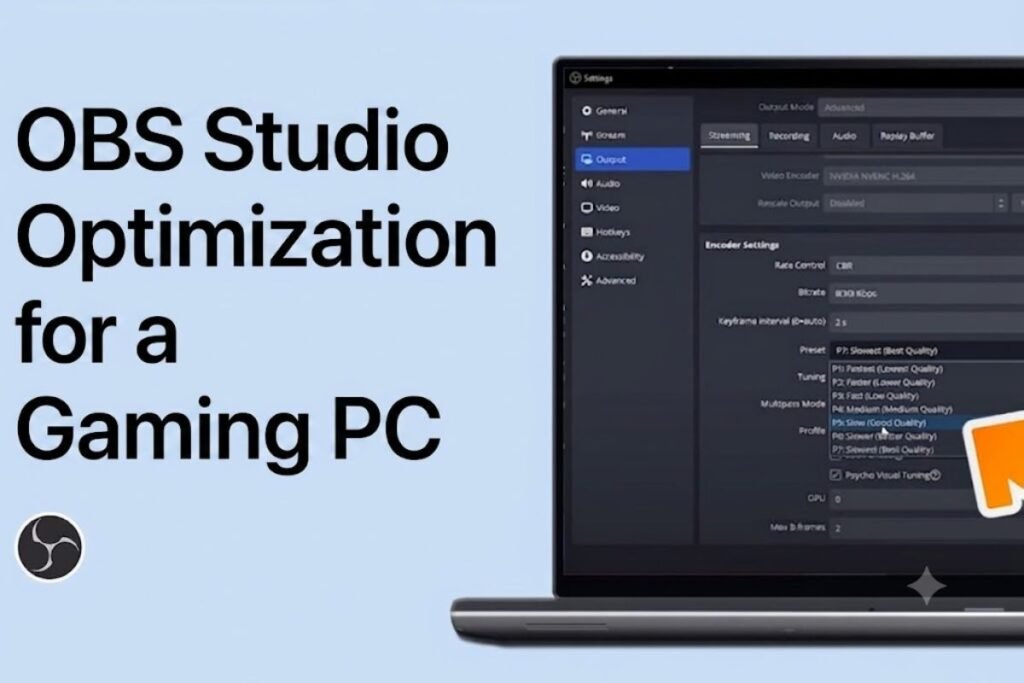
OBS Studio is one of the most popular free streaming applications available today. It offers powerful customization options, supports multiple streaming platforms, and works efficiently with modern hardware. However, using the default settings can lead to blurry video, dropped frames, or encoder overload—especially during demanding games.
Optimizing OBS Studio ensures your Gaming PC delivers a smooth gameplay experience while maintaining a professional-looking stream.
Pro Tip: Always download the latest stable version of OBS Studio to benefit from new performance improvements and bug fixes.
Choose the Right Encoder
The encoder converts your gameplay into a video stream that platforms like Twitch, YouTube, Kick, and Facebook Gaming can broadcast.
Hardware Encoding (Recommended)
Modern GPUs include dedicated hardware encoders that reduce CPU usage.
Popular options include:
- NVIDIA NVENC
- NVIDIA AV1
- AMD AMF
- Intel Quick Sync Video
Advantages:
- Lower CPU usage
- Higher in-game FPS
- Stable streaming performance
- Better multitasking
For most users, hardware encoding provides the best balance between quality and performance.
Software Encoding (x264)
Software encoding relies on your processor.
Advantages:
- Excellent image quality
- Flexible encoding presets
Disadvantages:
- Higher CPU usage
- Lower FPS in CPU-intensive games
- Increased system temperatures
Use x264 only if your processor has plenty of unused resources.
Select the Correct Resolution
Streaming at an unnecessarily high resolution can overload your system.
Recommended settings:
| Base Resolution | Output Resolution | Best For |
| 1920×1080 | 1920×1080 | High-end Gaming PC |
| 2560×1440 | 1920×1080 | Most streamers |
| 3840×2160 | 1920×1080 | 4K gameplay streaming |
Even if you play at 1440p or 4K, streaming in 1080p often provides the best balance between image quality and bandwidth.
Choose the Best Frame Rate
Higher frame rates create smoother video but require more resources.
Recommended options:
- 30 FPS – Entry-level systems
- 60 FPS – Standard for most gaming streams
- 120 FPS – Rarely necessary for live streaming
A stable 60 FPS stream is preferable to an unstable higher frame rate.
Configure Bitrate Correctly
Bitrate determines video quality and upload bandwidth usage.
Suggested video bitrates:
| Resolution | FPS | Bitrate |
| 720p | 30 | 3,000 Kbps |
| 720p | 60 | 4,500 Kbps |
| 1080p | 30 | 6,000 Kbps |
| 1080p | 60 | 6,000–8,000 Kbps (platform-dependent) |
Always follow the bitrate recommendations of your chosen streaming platform.
Set the Keyframe Interval
Most streaming services recommend:
- Keyframe Interval: 2 seconds
This improves compatibility and stream stability.
Adjust Encoder Presets
If you use NVIDIA NVENC:
- Preset: Quality
- Multipass Mode: Two-Pass
- Look-Ahead: Disabled (unless you have GPU headroom)
- Psycho Visual Tuning: Enabled
These settings deliver excellent image quality while minimizing performance impact.
Optimize Audio Settings
Clear audio is just as important as clear video.
Recommended settings:
- Sample Rate: 48 kHz
- Stereo Audio
- Desktop Audio: Correct playback device
- Microphone: Dedicated USB or XLR microphone
Avoid clipping by keeping microphone levels below 0 dB.
Improve Microphone Quality
A good microphone setup enhances viewer experience.
Apply OBS filters such as:
- Noise Suppression
- Noise Gate
- Compressor
- Limiter
These filters reduce background noise and maintain consistent voice levels.
Organize Scenes and Sources
Too many active sources can increase CPU usage.
Best practices:
- Remove unused scenes.
- Delete inactive browser sources.
- Optimize animated overlays.
- Use image files instead of unnecessary videos where possible.
A clean scene collection improves OBS performance.
Internet Optimization for Streaming
A fast and stable internet connection is essential for uninterrupted streaming.
Use a Wired Ethernet Connection
Compared to Wi-Fi, Ethernet offers:
- Lower latency
- Greater stability
- Reduced packet loss
- Consistent upload speeds
Whenever possible, connect your Gaming PC directly to your router with a quality Ethernet cable.
Test Your Upload Speed
Before going live, verify your connection.
Recommended minimum upload speeds:
| Stream Quality | Upload Speed |
| 720p | 8 Mbps |
| 1080p | 15 Mbps |
| 1440p | 25 Mbps |
| 4K | 40 Mbps+ |
Try to limit the amount of upload bandwidth you utilize for streaming to no more than 70%.
Reduce Network Congestion
During a live stream:
- Pause large downloads.
- Disable automatic cloud backups.
- Limit video streaming on other devices.
- Schedule system updates outside streaming hours.
This ensures maximum bandwidth is available for your broadcast.
Enable Quality of Service (QoS)
Many modern routers include Quality of Service (QoS) settings. QoS prioritizes streaming traffic over less important network activity, helping maintain a stable upload connection even when multiple devices are connected. Consult your router’s documentation for setup instructions.
Audio Hardware Optimization
Professional audio can set your stream apart.
Recommended equipment:
- USB or XLR microphone
- Pop filter
- Boom arm
- Closed-back headphones
- Audio interface (for XLR microphones)
If you’re looking for accessories, pairing your setup with the best gaming headset for pc can improve in-game audio awareness and reduce microphone bleed.
Optimize Webcam Performance
For a smoother webcam feed:
- Use 1080p resolution if supported.
- Set exposure manually.
- Ensure good lighting.
- Match webcam FPS with stream FPS.
- Disable automatic focus if it causes hunting.
Proper lighting often improves image quality more than buying an expensive camera.
Configure Alerts and Browser Sources Efficiently
Animated alerts and browser widgets can consume CPU and memory.
Recommendations:
- Limit unnecessary browser sources.
- Refresh browser sources before streaming.
- Use optimized overlays.
- Remove outdated widgets.
This helps maintain consistent OBS performance.
Single-PC vs Dual-PC Streaming
Single-PC Streaming
A single Gaming PC handles both gaming and streaming.
Advantages:
- Lower cost
- Easier setup
- Less desk space
- Simpler maintenance
Modern high-end systems are fully capable of this approach.
Dual-PC Streaming
A second computer handles encoding while the main PC focuses solely on gaming.
Advantages:
- Maximum gaming performance
- Lower CPU and GPU load on the gaming system
- Professional production workflows
- Greater reliability for long broadcasts
However, dual-PC setups require additional equipment such as a capture card and audio routing solutions.
Monitor System Performance While Streaming
Keep an eye on system usage using Task Manager or dedicated monitoring software.
Important metrics include:
- CPU usage
- GPU usage
- RAM usage
- GPU encoder load
- Network upload speed
- OBS dropped frames
- System temperatures
If any component consistently reaches 100% utilization, consider lowering stream settings or upgrading hardware.
Test Before Going Live
Always perform a short private test stream after making major changes.
Check for:
- Smooth gameplay
- Clear audio
- Stable bitrate
- Correct webcam placement
- Overlay functionality
- Synchronization between audio and video
Testing helps identify issues before your audience notices them.
Streaming Optimization Checklist
Before each stream, verify the following:
- ✔ OBS Studio is updated.
- ✔ Hardware encoder is selected.
- ✔ Resolution and FPS match your hardware.
- ✔ Bitrate is appropriate for your internet speed.
- ✔ Audio filters are working correctly.
- ✔ Ethernet connection is active.
- ✔ Alerts and overlays function properly.
- ✔ Webcam lighting is adequate.
- ✔ CPU and GPU temperatures are normal.
- ✔ A successful test recording or private stream has been completed.
By fine-tuning OBS Studio, optimizing your internet connection, and maintaining efficient audio and video settings, your Gaming PC can deliver high-quality streams with minimal impact on gameplay. These adjustments create a more enjoyable experience for your audience while allowing you to focus on creating engaging content.
GPU Optimization for a Gaming PC
Your graphics card is one of the most important components in a Gaming PC, especially when you stream modern games at high resolutions. Besides rendering graphics, today’s GPUs include dedicated hardware encoders that reduce CPU usage and improve stream quality.
Even the best gaming pc can experience frame drops if the graphics card is not configured correctly. By optimizing GPU settings, you can achieve smoother gameplay, higher frame rates, and better streaming performance.
Whether you own an Alienware gaming pc, MSI gaming pc, Cyberpower gaming pc, Skytech gaming pc, or a custom gaming pc, the following optimizations will help maximize performance.
Keep GPU Drivers Updated
Graphics driver updates often include:
- Performance improvements
- Support for new game releases
- Streaming encoder enhancements
- Stability fixes
- Security updates
- Reduced latency
Check for updates regularly through your GPU manufacturer’s software or official website. Installing the latest driver ensures your Gaming PC performs at its best during gaming and streaming sessions.
Optimize Graphics Settings for Streaming
Running every game at maximum graphical settings may reduce streaming performance. Instead, prioritize settings that have the biggest impact on FPS.
Lower These Settings First
Many games gain significant performance improvements by reducing:
- Shadow Quality
- Volumetric Lighting
- Ray Tracing
- Ambient Occlusion
- Reflection Quality
- Motion Blur
These options consume considerable GPU resources but often have only a minor impact on gameplay.
Keep These Settings High
Maintain higher quality for settings that improve image clarity:
- Texture Quality (if VRAM allows)
- Anisotropic Filtering
- Anti-Aliasing (moderate levels)
- Character Detail
Balancing these settings helps your Gaming PC maintain stable FPS without sacrificing visual quality.
Enable Hardware Encoding
Modern GPUs include dedicated encoders that allow streaming with minimal performance loss.
Examples include:
- NVIDIA NVENC
- NVIDIA AV1
- AMD AMF
- Intel Quick Sync
Hardware encoding allows your graphics card to process the video stream independently of the game’s rendering workload. For most streamers, this is the recommended option.
Configure NVIDIA Control Panel
If your Gaming PC uses an NVIDIA graphics card, adjust these settings for improved gaming performance.
Recommended settings include:
- Power Management Mode: Prefer Maximum Performance
- Low Latency Mode: On or Ultra (depending on the game)
- Texture Filtering – Quality: High Performance
- Vertical Sync: Off (unless needed)
- Shader Cache: Enabled
These adjustments can reduce input lag and improve frame consistency.
Configure AMD Adrenalin Software
For AMD users:
- Enable Radeon Anti-Lag if supported.
- Keep Radeon Image Sharpening at moderate levels.
- Enable Smart Access Memory (compatible systems).
- Update game profiles regularly.
Avoid turning on all of the optional features at once because some combinations might make some games perform worse.
Optimize Intel Arc Graphics
Intel Arc GPUs continue to improve through frequent driver updates.
Recommendations:
- Enable AV1 encoding.
- Update drivers frequently.
- Use Intel Graphics Command Center for optimization.
- Monitor GPU utilization during streams.
Monitor GPU Utilization
Ideally, your graphics card should not remain at 100% usage while streaming.
Recommended target:
- 85–95% GPU usage
Leaving a small amount of headroom allows OBS Studio and the encoder to function smoothly.
If GPU usage constantly reaches 100%:
- Lower graphics settings.
- Cap your frame rate.
- Reduce rendering resolution.
- Disable unnecessary visual effects.
Limit Frame Rate
Unnecessary GPU burden is frequently caused by unlimited FPS. Rather, set your FPS cap a little bit higher than the refresh rate of your monitor.
Examples:
- 60 Hz monitor → 60 FPS
- 144 Hz monitor → 141 FPS
- 165 Hz monitor → 162 FPS
- 240 Hz monitor → 237 FPS
Frame rate limiting reduces GPU usage while maintaining smooth gameplay.
Cooling Optimization for a Gaming PC
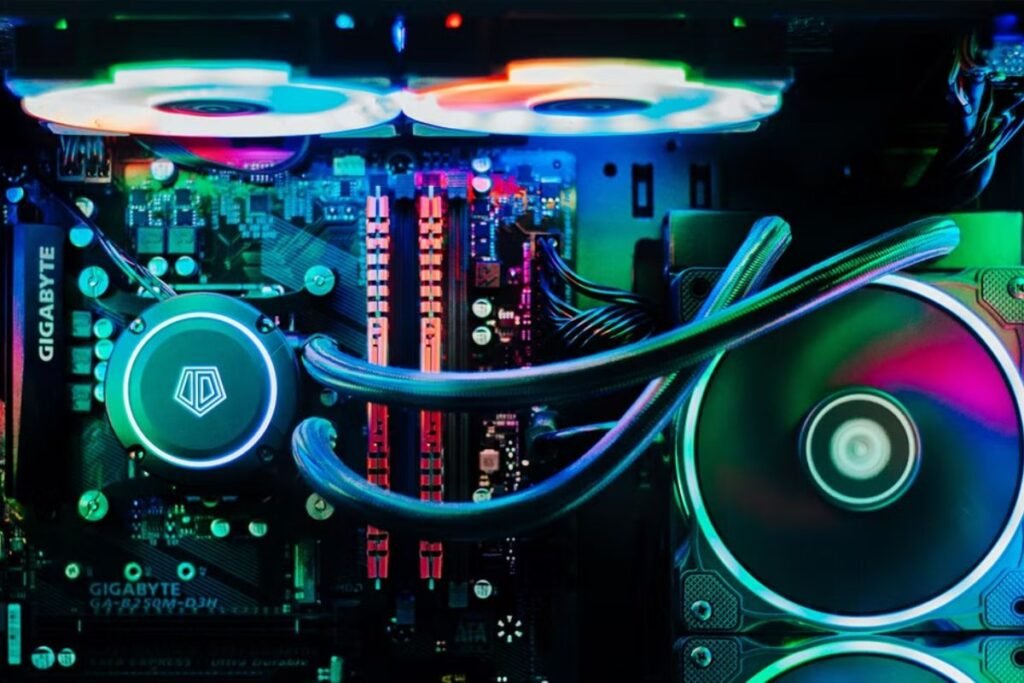
Streaming sessions often last several hours, making cooling essential for maintaining consistent performance.
Excessive temperatures can cause:
- Thermal throttling
- Lower clock speeds
- Increased fan noise
- Hardware instability
- Reduced component lifespan
Improve Case Airflow
Good airflow removes hot air efficiently.
General airflow layout:
- Front fans → Intake
- Bottom fans → Intake (if supported)
- Rear fan → Exhaust
- Top fans → Exhaust
This configuration creates a steady flow of cool air through the case.
Organize Cables
Poor cable management blocks airflow.
Use:
- Cable ties
- Velcro straps
- Rear cable channels
Keeping cables organized improves cooling and makes future upgrades easier.
Clean Dust Regularly
Dust acts as insulation, trapping heat inside your system.
Every two to three months:
- Clean intake filters.
- Remove dust from fans.
- Blow dust out of heatsinks using compressed air.
- Clean radiator fins if you use liquid cooling.
Regular maintenance helps your Gaming PC maintain lower operating temperatures.
Upgrade CPU Cooling
The stock CPU cooler may struggle during extended streaming sessions.
Consider upgrading to:
Tower Air Coolers
Advantages:
- Reliable
- Quiet
- Affordable
- Low maintenance
All-in-One Liquid Coolers
Benefits include:
- Better cooling capacity
- Cleaner appearance
- Lower CPU temperatures under heavy workloads
Choose a cooler appropriate for your processor’s power requirements.
Monitor System Temperatures
Use trusted monitoring software to track temperatures.
Recommended maximum temperatures:
| Component | Ideal Range |
| CPU | 60–80°C |
| GPU | 60–80°C |
| NVMe SSD | Below 70°C |
Brief temperature spikes are normal, but sustained high temperatures may indicate inadequate cooling.
Optimize Fan Curves
Most motherboards allow custom fan profiles.
A balanced fan curve:
- Keeps the system quiet at idle.
- Increases airflow during gaming.
- Prevents sudden temperature spikes.
Test different fan profiles to find the best balance between cooling and noise.
Avoid Thermal Throttling
Thermal throttling occurs when components reduce performance to protect themselves from overheating.
Signs include:
- Sudden FPS drops
- Reduced clock speeds
- Increased stuttering
- Loud fan activity
Improving airflow and cleaning your system regularly are the most effective ways to prevent throttling.
Storage Optimization
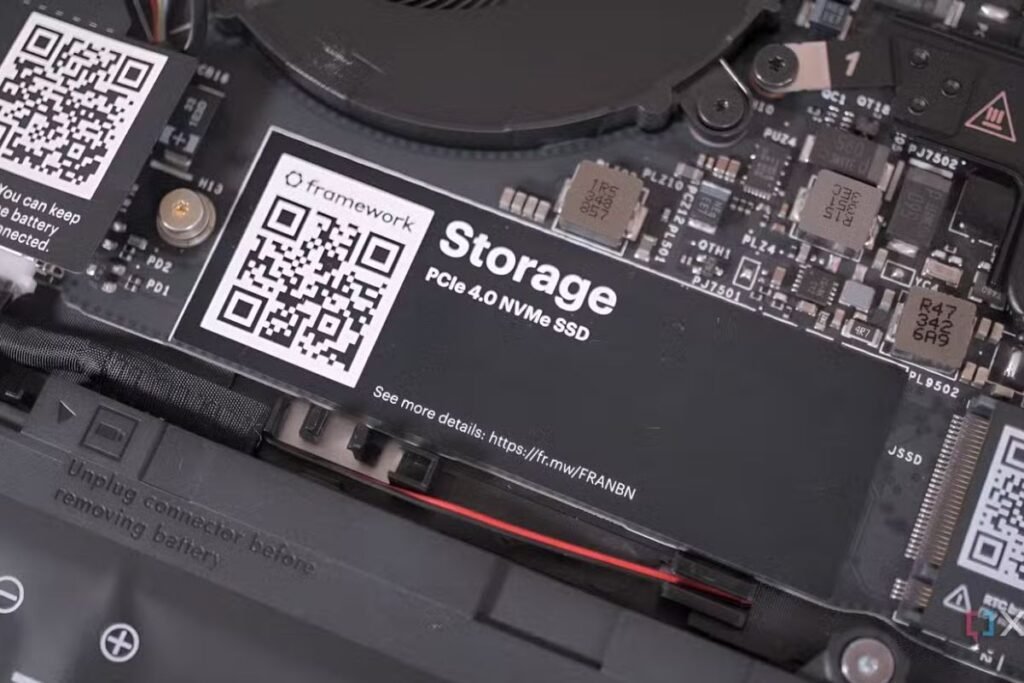
Storage performance affects game loading times, recording speed, and overall responsiveness.
Install Games on an NVMe SSD
Modern games stream large amounts of data while you play.
Installing games on an NVMe SSD provides:
- Faster loading times
- Reduced texture pop-in
- Smoother gameplay
- Faster updates
This is especially beneficial for open-world games.
Separate Recording Storage
If possible:
- Install Windows on Drive C.
- Store games on one SSD.
- Save recordings to another SSD.
Separating workloads reduces storage bottlenecks during high-bitrate recording and streaming.
Defragment Only Hard Drives
Traditional hard drives benefit from defragmentation. Do not manually defragment SSDs. Windows automatically optimizes SSDs using the TRIM command, which maintains performance without unnecessary wear.
Monitor Available Storage
Try to keep at least:
- 20% free space on SSDs
- 15% free space on hard drives
Running out of storage can reduce performance and interrupt recordings.
Optimize RGB and Peripheral Software
Many gamers use RGB lighting software for keyboards, mice, memory, and fans. However, running multiple RGB applications simultaneously can increase CPU and memory usage.
Examples include:
- Corsair iCUE
- ASUS Armoury Crate
- MSI Center
- Razer Synapse
- Logitech G HUB
While upgrading your CPU and GPU is essential, don’t overlook your peripherals. A responsive keyboard and precise mouse can improve both your gaming performance and streaming workflow. If you’re looking for the right setup, check out our guide on the best keyboard and mouse for gaming and productivity
Reduce Background Resource Usage
Only keep essential peripheral software running.
Disable unnecessary features such as:
- Automatic updates during streaming
- Animated lighting effects
- Hardware monitoring overlays
- Cloud synchronization
This frees additional resources for your Gaming PC.
Keep Peripheral Firmware Updated
Manufacturers regularly release firmware updates that improve:
- Mouse responsiveness
- Keyboard stability
- Audio quality
- Webcam performance
Update firmware periodically rather than immediately before an important stream.
Choose High-Performance Gaming Accessories
Quality peripherals can improve your streaming experience.
Consider:
- A responsive mechanical keyboard
- A lightweight gaming mouse
- The best gaming headset for pc with clear microphone monitoring
- A high-refresh-rate gaming monitor
- A quality webcam with good low-light performance
Reliable accessories help create a smoother experience for both you and your viewers.
While optimizing your gaming PC for streaming, don’t overlook your peripherals—especially the keyboard. A responsive and comfortable gaming keyboard can improve your control, gameplay, and overall streaming experience. Check out our complete Gaming Keyboards Guide to learn about the different types, essential features, and tips for choosing the right keyboard for your setup.
Performance Optimization Checklist
Before starting your stream, verify the following:
- ✔ GPU drivers are up to date.
- ✔ Hardware encoder is enabled.
- ✔ Graphics settings are optimized for stable FPS.
- ✔ Frame rate is capped appropriately.
- ✔ GPU usage remains below 95%.
- ✔ Case airflow is unobstructed.
- ✔ Dust filters are clean.
- ✔ CPU and GPU temperatures are within safe limits.
- ✔ Games are installed on an NVMe SSD.
- ✔ Recording drive has sufficient free space.
- ✔ Only essential RGB and peripheral software is running.
Applying these GPU, cooling, storage, and peripheral optimizations allows your Gaming PC to deliver consistent performance throughout long gaming and streaming sessions. By reducing unnecessary resource usage and maintaining efficient temperatures, you create a stable foundation for high-quality broadcasts while extending the lifespan of your hardware.
Security Optimization for a Gaming PC
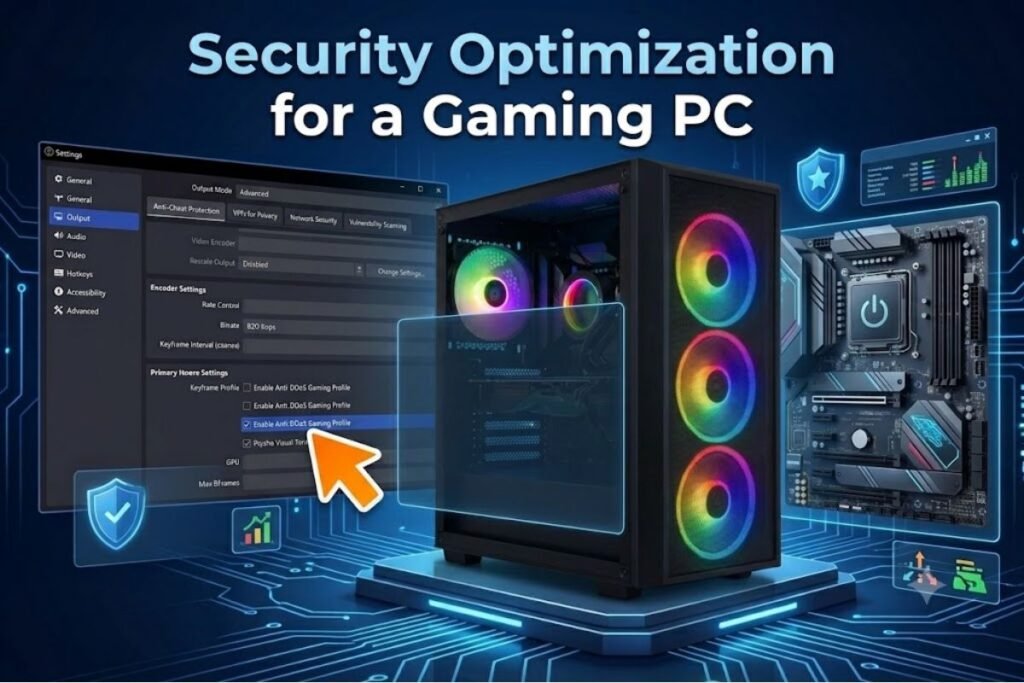
A secure Gaming PC performs better over time and is less likely to suffer from malware, ransomware, or unwanted software that can slow down streaming. Security is about more than protecting personal data—it also helps maintain consistent system performance.
Many performance problems are caused by hidden background processes installed by suspicious downloads or untrusted software. Keeping your computer secure reduces unnecessary CPU and storage usage while protecting your streaming accounts.
Install Software Only from Trusted Sources
Always download:
- GPU drivers from official manufacturers
- OBS Studio from its official website
- Games from reputable platforms
- Streaming plugins from trusted developers
Avoid downloading cracked software, unofficial mods, or unknown utilities, as they may contain malware that affects your Gaming PC.
Keep Windows Security Enabled
Windows Security provides effective protection for most users without significantly affecting gaming performance.
Recommended settings:
- Real-time protection: Enabled
- Firewall: Enabled
- SmartScreen: Enabled
- Ransomware protection: Enabled (if desired)
If you use third-party antivirus software, ensure it includes a gaming or silent mode to minimize interruptions.
Schedule Antivirus Scans
Avoid running full system scans while streaming.
Instead:
- Schedule scans during idle hours.
- Pause scheduled scans before going live.
- Keep virus definitions updated.
This prevents sudden CPU usage spikes during gameplay.
Enable Two-Factor Authentication
Protect your streaming accounts by enabling two-factor authentication (2FA) on platforms such as Twitch, YouTube, Discord, and email services.
Benefits include:
- Improved account security
- Protection against unauthorized access
- Reduced risk of losing your channel
Backup Important Streaming Files
Streaming involves many valuable files, including:
- OBS scene collections
- Stream overlays
- Audio settings
- Recorded videos
- Graphics and thumbnails
Back up these files regularly to an external drive or trusted cloud storage so you can recover quickly after hardware failure or accidental deletion.
If you’re also planning to play games through cloud platforms, don’t miss our guide on how to optimize your gaming PC for cloud gaming, where you’ll find additional tips for reducing latency and improving streaming quality.
Common Streaming Problems and Solutions
Even a powerful Gaming PC can experience issues during live broadcasts. Understanding the most common problems and their solutions will help you troubleshoot quickly.
Problem: Dropped Frames
Possible Causes
- Slow upload speed
- Unstable internet connection
- High network congestion
- Incorrect bitrate
Solutions
- Use a wired Ethernet connection.
- Lower your streaming bitrate.
- Pause downloads on other devices.
- Restart your router if necessary.
Problem: Encoder Overload
Possible Causes
- GPU or CPU usage at 100%
- Very high game settings
- Excessive OBS sources
Solutions
- Lower graphics settings.
- Cap your frame rate.
- Use hardware encoding.
- Reduce browser sources and overlays.
Problem: Audio Out of Sync
Possible Causes
- Incorrect audio delay
- USB device latency
- Capture card delay
Solutions
- Adjust audio sync offset in OBS.
- Connect audio devices directly to your PC.
- Update audio drivers.
Problem: Stuttering Gameplay
Possible Causes
- CPU bottleneck
- GPU overload
- Thermal throttling
- Background software
Solutions
- Close unnecessary applications.
- Reduce in-game settings.
- Monitor temperatures.
- Improve cooling.
Problem: Poor Video Quality
Possible Causes
- Low bitrate
- Incorrect encoder settings
- High-motion gameplay
Solutions
- Increase bitrate (within platform limits).
- Use the Quality encoder preset.
- Stream at 1080p instead of higher resolutions if bandwidth is limited.
Monitor Your System During Streams
Monitoring tools help identify performance bottlenecks before they become major issues.
Track:
- CPU usage
- GPU usage
- GPU encoder usage
- RAM usage
- VRAM usage
- SSD utilization
- Network upload speed
- CPU temperature
- GPU temperature
Watching these metrics helps you determine whether hardware upgrades or setting adjustments are needed.
Routine Maintenance for Long-Term Performance
A well-maintained Gaming PC stays faster, quieter, and more reliable.
Weekly Tasks
- Check Windows updates.
- Empty the Recycle Bin.
- Delete temporary files.
- Restart your computer.
Monthly Tasks
- Update GPU drivers.
- Check SSD free space.
- Review startup applications.
- Test stream quality.
Every Three to Six Months
- Clean dust filters.
- Remove dust from fans and heatsinks.
- Check cable connections.
- Inspect fan operation.
- Replace worn thermal paste if temperatures have increased significantly (typically every few years or as needed).
Upgrade Recommendations
If your current Gaming PC struggles with modern games and streaming, prioritize upgrades that deliver the greatest performance gains.
Upgrade Priority:
- Graphics card
- NVMe SSD
- RAM (32 GB recommended)
- Processor
- CPU cooler
- Power supply (if required for new hardware)
Avoid upgrading multiple major components at once unless necessary. Testing after each upgrade makes it easier to identify compatibility or performance issues.
If you’re planning to record gameplay, save large video files, or expand your game library, choosing the right storage device is just as important as upgrading your CPU or GPU. Our guide on External SSD vs HDD explains which option delivers better speed, reliability, and value for gamers and streamers.
Choosing the Right Gaming PC for Streaming
There are many excellent systems available, and the best choice depends on your budget and streaming goals.
Entry-Level
A budget gaming pc or cheap gaming pc can comfortably stream esports titles and less demanding games when configured correctly.
Mid-Range
A well-equipped pre built gaming pc offers strong performance for most streamers and often includes modern GPUs with hardware encoding.
High-End
If you stream demanding AAA games, consider a best prebuilt gaming pc or a custom gaming pc with a powerful processor, a high-end graphics card, and 32 GB or more of RAM.
For users who prefer compact systems, a mini gaming pc may be suitable for lighter streaming workloads, provided it has adequate cooling.
Streaming Accessories Worth Considering
Your hardware extends beyond the computer itself. Reliable accessories can improve stream quality and viewer engagement.
Useful additions include:
- A high-quality USB or XLR microphone
- A webcam with manual controls
- Dual monitors for game and chat management
- A capture card for dual-PC setups
- A stream deck for quick scene switching
- The best gaming headset for pc for accurate in-game audio and voice monitoring
Choose accessories based on your workflow rather than simply purchasing the most expensive options.
Expert Tips for Better Streaming Performance
Experienced streamers often follow these habits:
- Restart the computer before long streaming sessions.
- Test new settings in a private stream first.
- Keep only essential applications running.
- Monitor hardware temperatures regularly.
- Maintain sufficient free storage space.
- Update software gradually rather than immediately before important broadcasts.
- Record short test videos after major hardware or driver changes.
- Organize game libraries and recordings for easier management.
These simple habits can improve both performance and reliability over time.
Final Gaming PC Streaming Optimization Checklist
Before every live stream, take a few minutes to verify that your Gaming PC is fully optimized. This simple checklist helps reduce technical issues and improves overall stream quality.
Hardware Checklist
- ✔ Update Windows and graphics drivers.
- ✔ Enable XMP or EXPO for maximum RAM speed.
- ✔ Ensure CPU and GPU temperatures remain below 80°C.
- ✔ Keep at least 20% free space on your SSD.
- ✔ Clean dust filters and maintain proper airflow.
- ✔ Connect your PC using a wired Ethernet connection.
Software Checklist
- ✔ Close unnecessary background applications.
- ✔ Enable Game Mode.
- ✔ Select the High Performance power plan.
- ✔ Update OBS Studio and plugins.
- ✔ Use hardware encoding (NVENC, AV1, or AMD AMF).
Streaming Checklist
- ✔ Test your microphone and webcam.
- ✔ Check overlays and alerts.
- ✔ Perform a short test recording before going live.
- ✔ Monitor CPU, GPU, RAM, and network usage throughout your stream.
Following these steps ensures your Gaming PC delivers a smooth, stable, and professional streaming experience.
Future-Proof Your Gaming PC
Technology evolves quickly, so planning for future upgrades helps your system remain competitive.
Consider upgrading these components over time:
- A newer graphics card with advanced hardware encoding.
- A faster multi-core processor.
- 32 GB or more of DDR5 memory.
- Additional NVMe SSD storage.
- A higher-efficiency power supply.
- Improved CPU cooling for sustained performance.
Investing in quality components today can extend the life of your Gaming PC and reduce future upgrade costs.
Final Tips for Better Streaming
Keep these best practices in mind:
- Restart your PC before important streams.
- Test new settings in a private stream first.
- Keep drivers and OBS Studio up to date.
- Avoid running unnecessary background software.
- Monitor system temperatures regularly.
- Maintain a stable internet connection using Ethernet.
- Back up your OBS profiles and recorded content.
Small improvements made consistently can have a big impact on stream quality and system reliability.
Conclusion
Optimizing your gaming PC for streaming involves much more than having high-end components. The best results come from combining updated drivers, well-tuned Windows settings, optimized OBS Studio preferences, effective cooling, fast SSD storage, and a stable, high-speed internet connection. Together, these improvements deliver smoother gameplay, higher-quality streams, and a better viewing experience.
Whether you’re using a custom gaming PC build, prebuilt gaming PC, Alienware gaming PC, CyberPowerPC gaming PC, MSI gaming PC, or a budget gaming PC, these optimization techniques can help boost performance, minimize lag, enhance stream quality, and keep your broadcasts running reliably.
For more expert guides on PC hardware, gaming, and technology, visit Tech All World and Techh AtoZ. If you’re also interested in travel inspiration, restaurants, and beach destinations, explore Restaurent.net and Beach Near for helpful travel and dining recommendations.
Frequently Asked Questions
Q1. Can a budget Gaming PC handle streaming?
Ans: Yes. A budget gaming pc with a modern 6-core CPU, 16 GB of RAM, an SSD, and a graphics card that supports hardware encoding can stream many games smoothly when optimized correctly.
Q2. Is GPU encoding better than CPU encoding?
Ans: For most streamers, yes. Hardware encoders like NVIDIA NVENC and AV1 reduce CPU usage while maintaining excellent video quality, making them ideal for gaming and streaming simultaneously.
Q3. How much RAM does a Gaming PC need for streaming?
Ans: A minimum of 16 GB is recommended, but 32 GB provides a smoother experience for modern games, OBS Studio, browsers, and other background applications.
Q4. Should I use Wi-Fi or Ethernet for streaming?
Ans: A wired Ethernet connection is strongly recommended because it offers lower latency, greater stability, and fewer connection drops than Wi-Fi.
Q5. How often should I update my graphics drivers?
Ans: Check for updates every month or before playing newly released games. Updated drivers often improve gaming performance, stability, and streaming quality.
Q6. What is the best streaming software for a Gaming PC?
Ans: OBS Studio is the most popular choice because it is free, feature-rich, highly customizable, and supports modern hardware encoders for excellent streaming performance.




6 Comments