

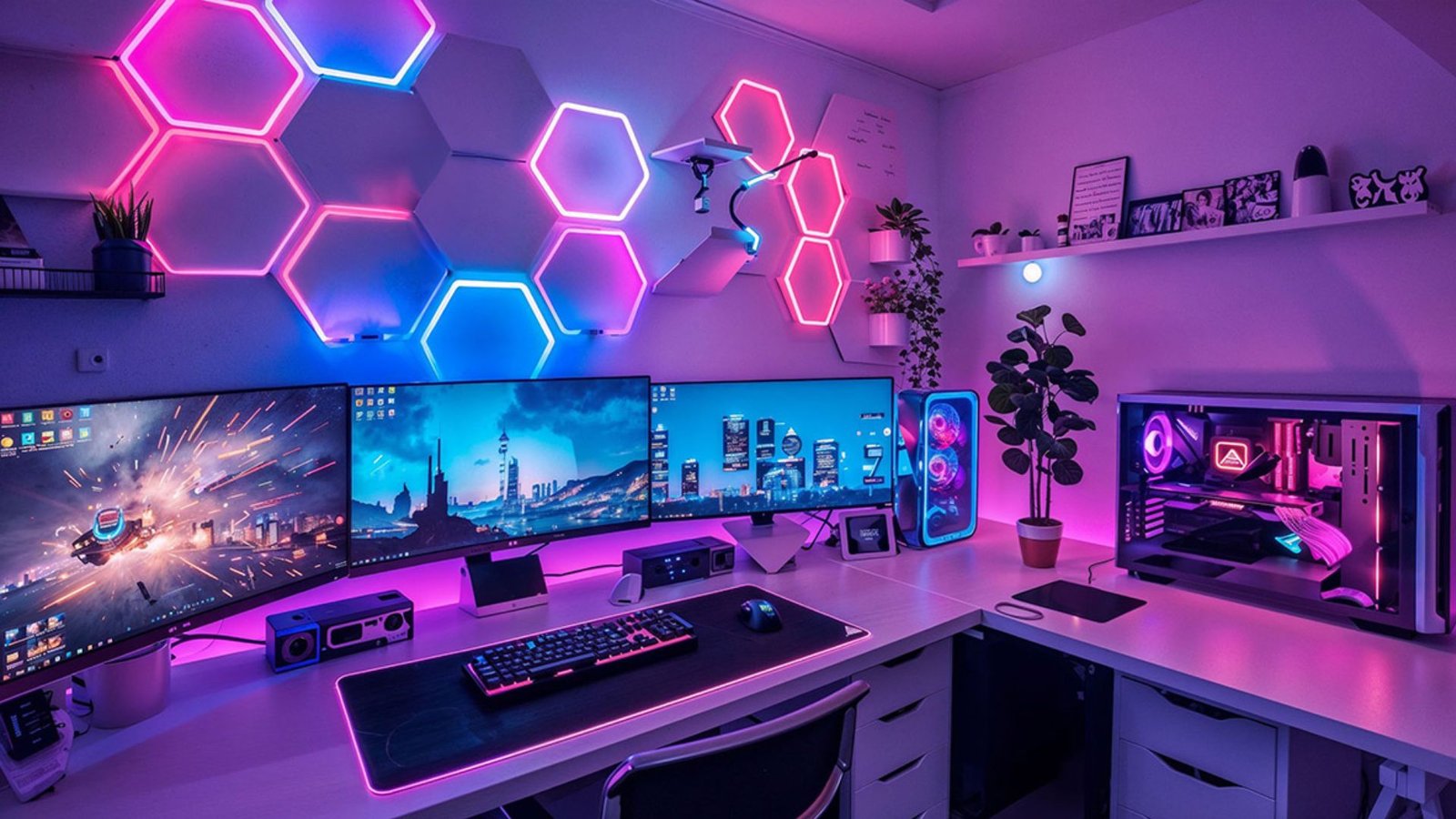
Streaming has become one of the biggest parts of modern gaming culture. Whether you stream on Twitch, YouTube, or Facebook Gaming, having a smooth and responsive gaming pc is essential for both gameplay and viewer experience. However, many gamers quickly discover that streaming can put heavy pressure on their system resources. Lag spikes, dropped frames, overheating, and poor video quality are common problems when a pc is not properly optimized.
Learning how to optimize a gaming pc for streaming can dramatically improve performance without necessarily buying expensive new hardware. With the right settings, upgrades, and software adjustments, you can create a smoother gaming and streaming experience while maintaining stable frame rates and better stream quality.
According toTom’s Hardware, modern streaming setups benefit greatly from multi-core CPUs, dedicated GPU encoders, fast SSD storage, and efficient cooling systems.
Read More : Best Laptop For Writers
Why Streaming Requires Extra PC Performance
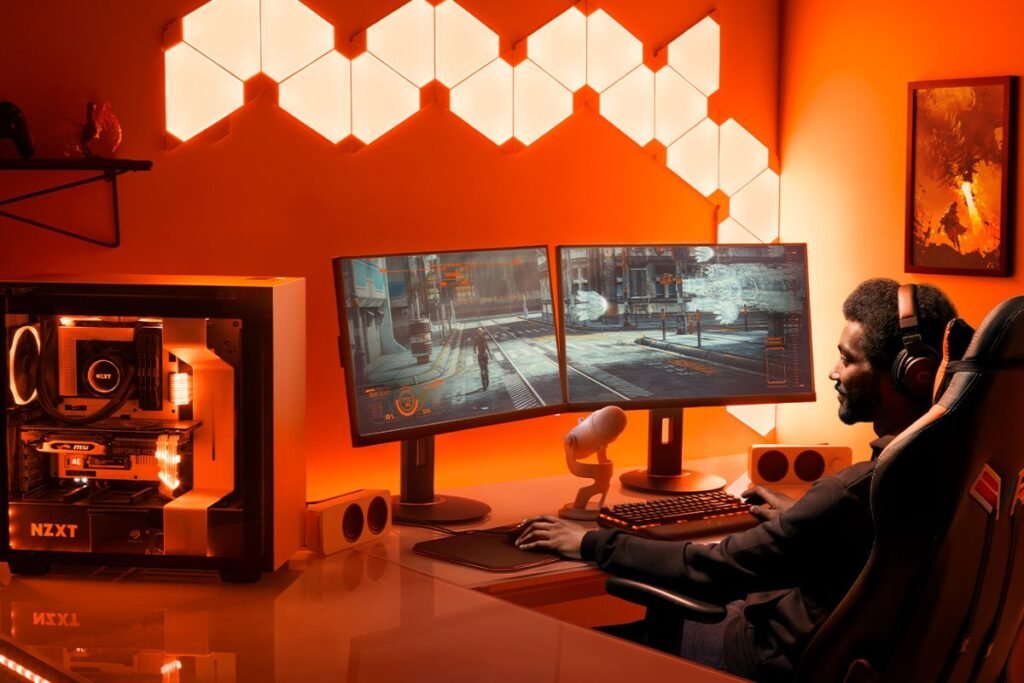
Gaming alone already uses significant CPU and GPU resources. Streaming adds additional tasks such as:
- Video encoding
- Audio processing
- Webcam rendering
- Live chat management
- Background applications
- Recording gameplay
This means your gaming pc must handle both gaming performance and real-time video broadcasting simultaneously. If your hardware or settings are not optimized, your viewers may experience buffering, blurry video, or stream lag.
Choose the Right Hardware for Streaming
Powerful Multi-Core CPU
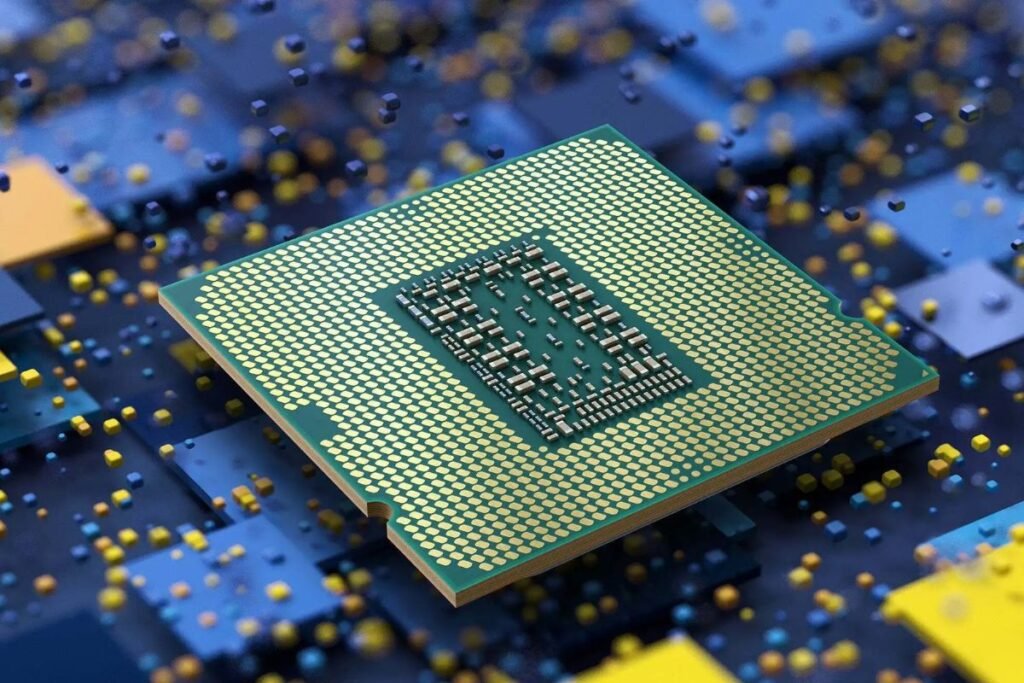
The processor plays a major role in gaming and streaming performance. Modern streaming software uses multiple cores for encoding and background tasks.
Recommended CPUs include:
- AMD Ryzen 7 series
- AMD Ryzen 9 series
- Intel Core i7
- Intel Core i9
A six-core processor is generally considered the minimum for streaming, while eight or more cores provide smoother multitasking.
Use a GPU with Hardware Encoding
Modern graphics cards include built-in hardware encoders that reduce CPU workload during streaming.
Popular streaming encoders include:
- NVIDIA NVENC
- AMD AMF
- Intel Quick Sync
NVIDIA RTX GPUs are especially popular because NVENC offers excellent stream quality with low performance impact. Many streamers prefer RTX 4060, RTX 4070, or higher models for balanced gaming and streaming performance.
Upgrade Your RAM
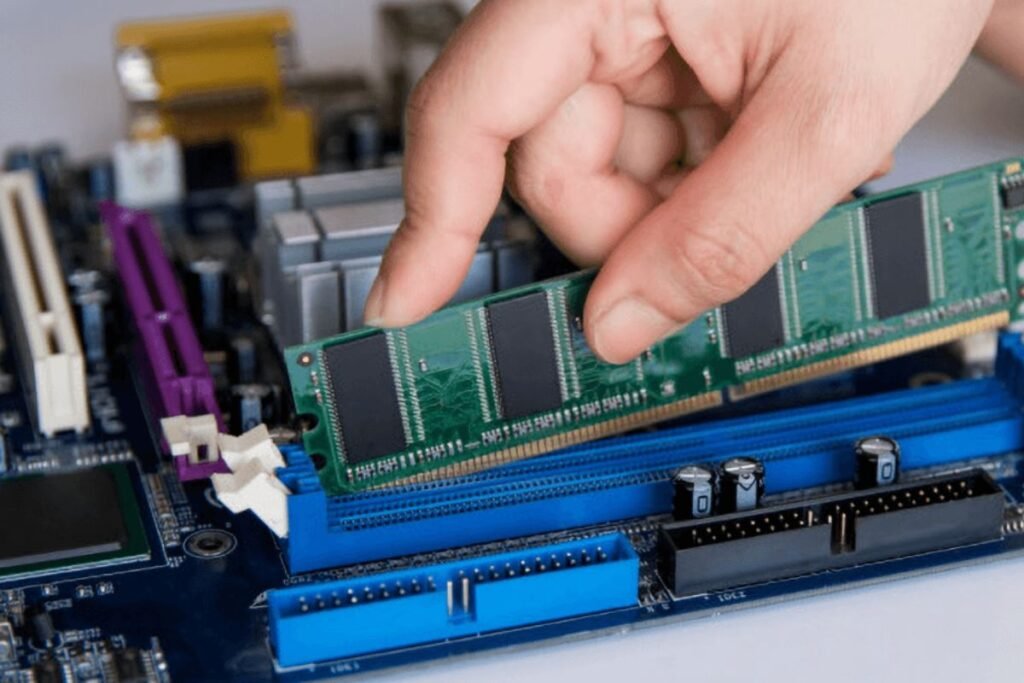
RAM is critical for multitasking while gaming and streaming.
Recommended RAM Capacity
| Usage Type | Recommended RAM |
| Casual streaming | 16GB |
| Heavy multitasking | 32GB |
| Professional streaming/editing | 64GB |
Streaming software, browsers, Discord, and games can quickly consume memory resources. Insufficient RAM often causes stuttering and system slowdowns.
Install Games on an SSD
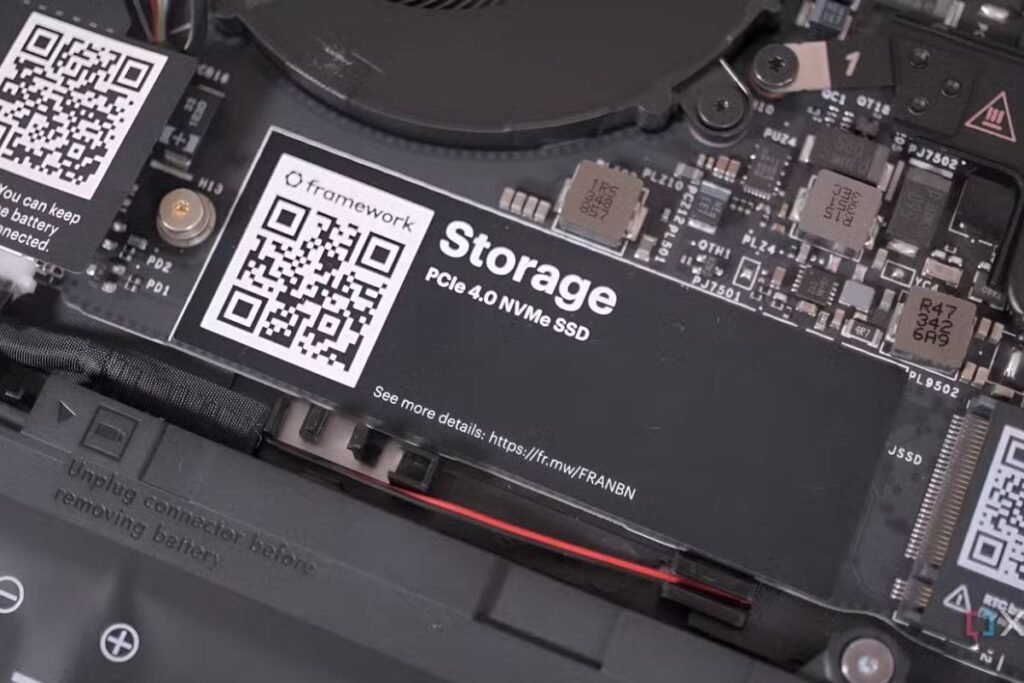
Solid-state drives dramatically improve loading speeds and reduce stuttering.
Benefits of SSD Storage
- Faster game loading
- Better Windows responsiveness
- Faster OBS recording access
- Reduced stream interruptions
NVMe SSDs offer even faster speeds than traditional SATA SSDs and are ideal for streamers.
Optimize OBS Studio Settings
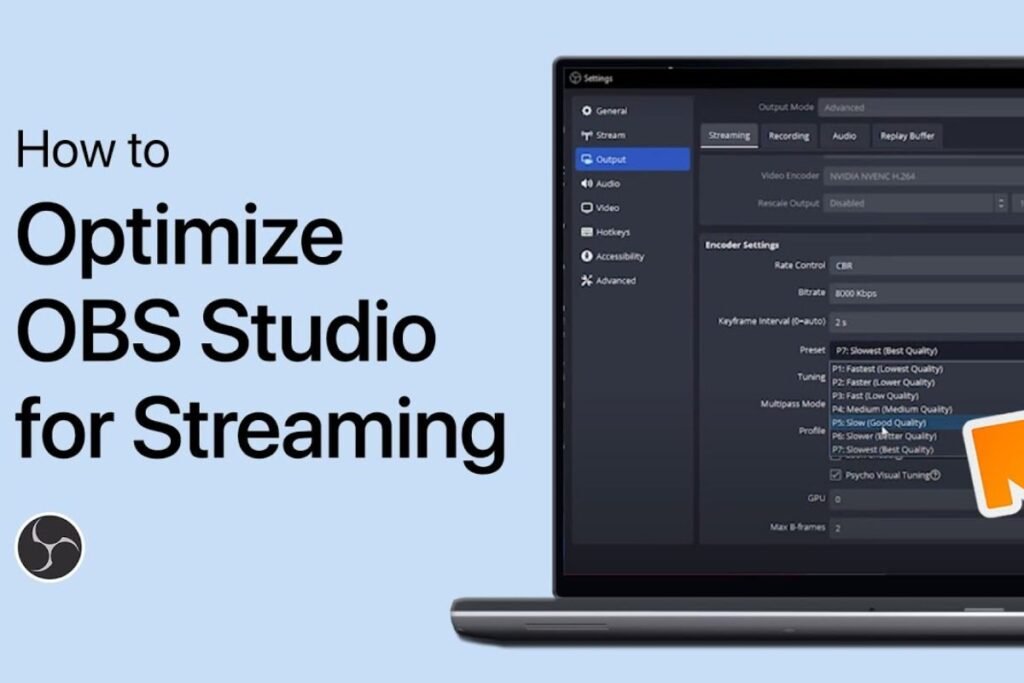
Use Hardware Encoding
Inside OBS Studio:
- Open Settings
- Go to Output
- Select NVENC or AMF encoder
- Avoid x264 unless you have a high-end CPU
Hardware encoding significantly reduces CPU usage during streaming.
Recommended Streaming Settings
| Setting | Recommended Value |
| Resolution | 1920×1080 |
| FPS | 60 FPS |
| Bitrate | 6000 Kbps |
| Encoder | NVENC |
| Keyframe Interval | 2 |
These settings balance quality and performance for most gaming pc setups.
Lower In-Game Graphics Settings

Many streamers make the mistake of maximizing graphics settings while streaming. Lowering a few demanding settings can free important GPU resources.
Settings That Improve Performance
- Shadows
- Ray tracing
- Ambient occlusion
- View distance
- Anti-aliasing
Reducing these settings often provides major FPS improvements with minimal visual loss.
Cap Your FPS
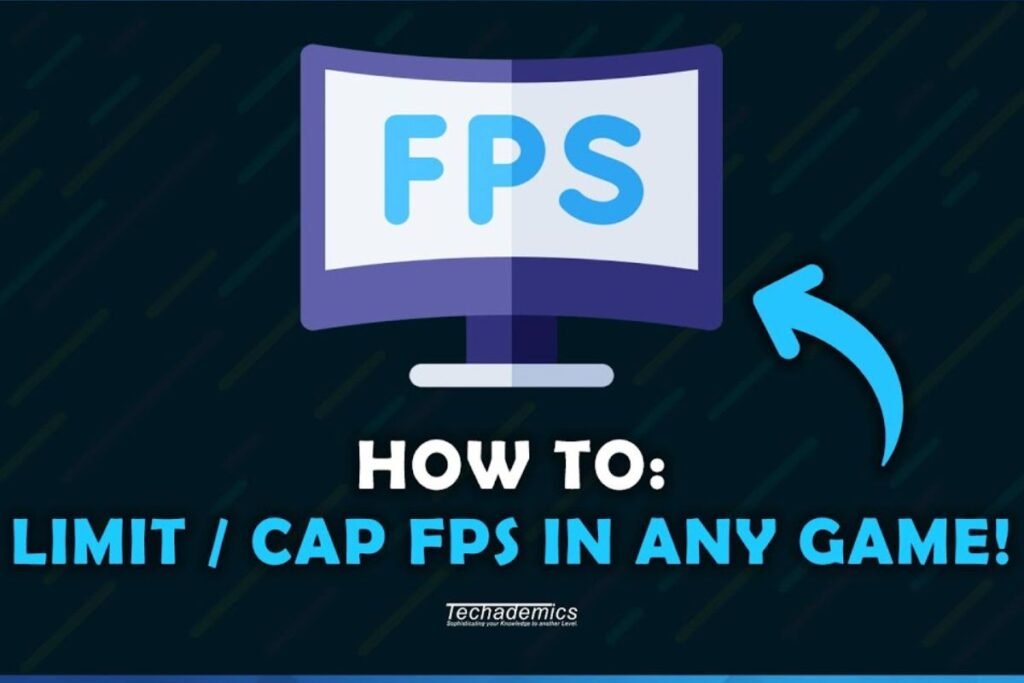
Unlimited frame rates can overload both the CPU and GPU during streaming.
Setting an FPS cap:
- Reduces hardware stress
- Lowers temperatures
- Creates more stable streams
- Prevents frame drops
Many streamers cap games slightly below their monitor refresh rate for smoother performance.
Improve Cooling and Airflow
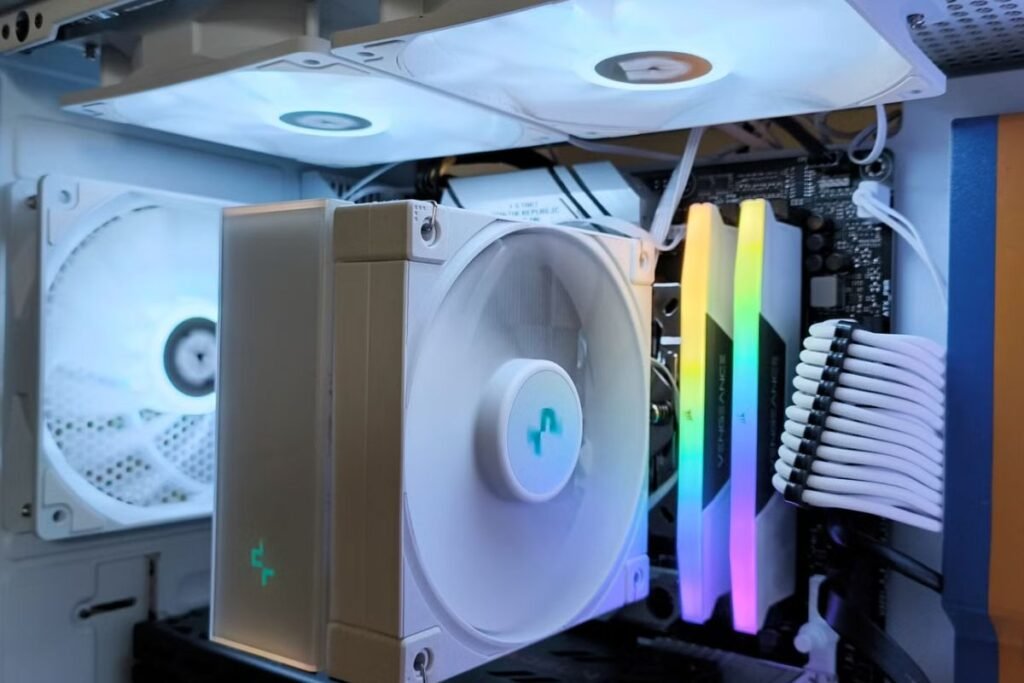
High temperatures can reduce gaming performance due to thermal throttling.
Cooling Tips
- Clean dust regularly
- Improve cable management
- Add intake and exhaust fans
- Use quality thermal paste
- Keep airflow unobstructed
Good airflow design can greatly improve long streaming sessions.
Close Background Applications
Background apps consume valuable CPU, RAM, and internet bandwidth.
Before streaming:
- Close unnecessary browser tabs
- Disable startup apps
- Exit update services
- Turn off overlays you do not use
Many streamers notice instant improvements after reducing background processes.
Optimize Windows for Streaming
Enable Game Mode
Windows Game Mode prioritizes gaming performance by reducing background activity.
Update Drivers
Always keep updated:
- GPU drivers
- Chipset drivers
- BIOS firmware
- Windows updates
Driver updates often include performance improvements for new games and streaming applications.
Use Dual Monitors
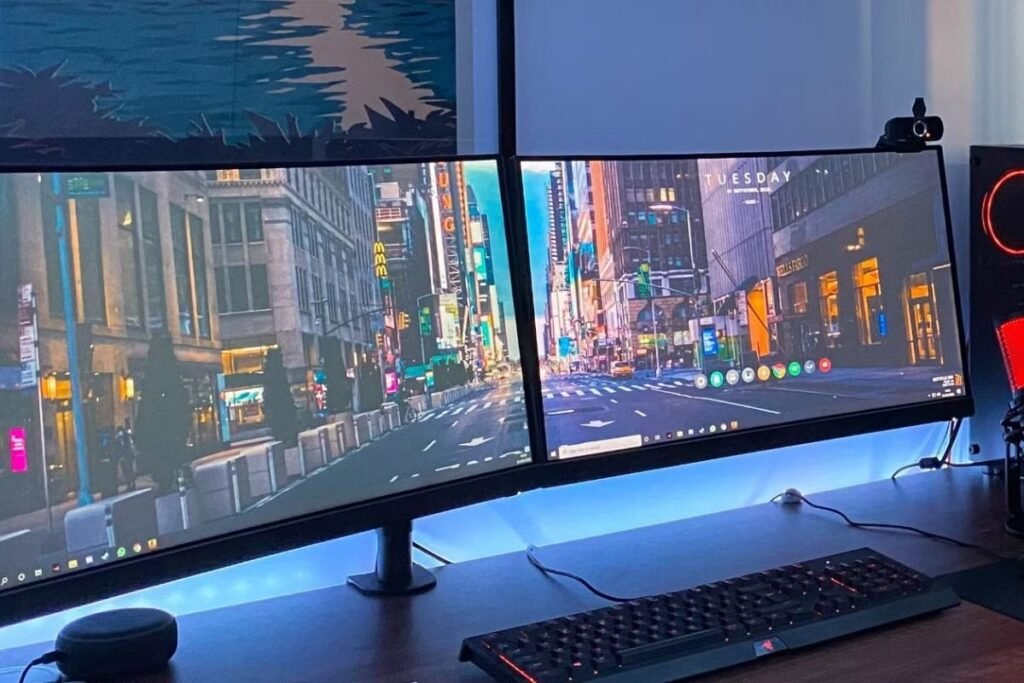
A dual-monitor setup makes streaming far easier.
One screen can display:
- OBS Studio
- Chat
- Alerts
- Stream controls
The second monitor remains dedicated to gameplay. Many professional streamers consider dual monitors essential.
Improve Internet Stability
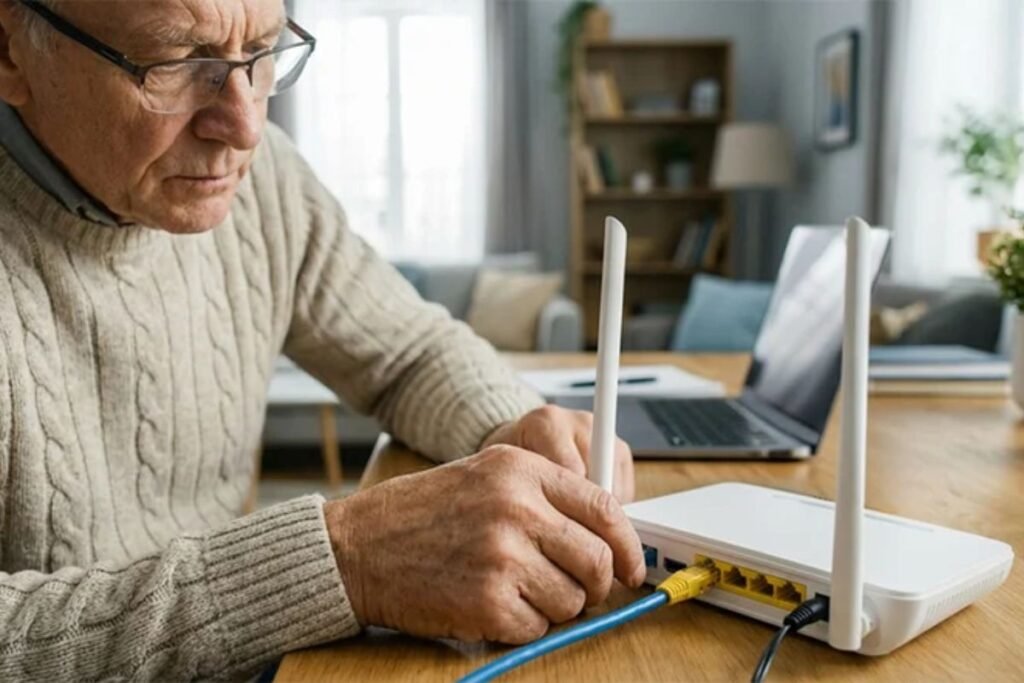
Streaming quality depends heavily on upload speed and network stability.
Recommended Internet Speeds
| Stream Quality | Upload Speed |
| 720p 30FPS | 5 Mbps |
| 1080p 60FPS | 10 Mbps |
| 1440p Streaming | 20 Mbps |
A wired Ethernet connection is usually more stable than Wi-Fi for streaming.
Monitor System Performance
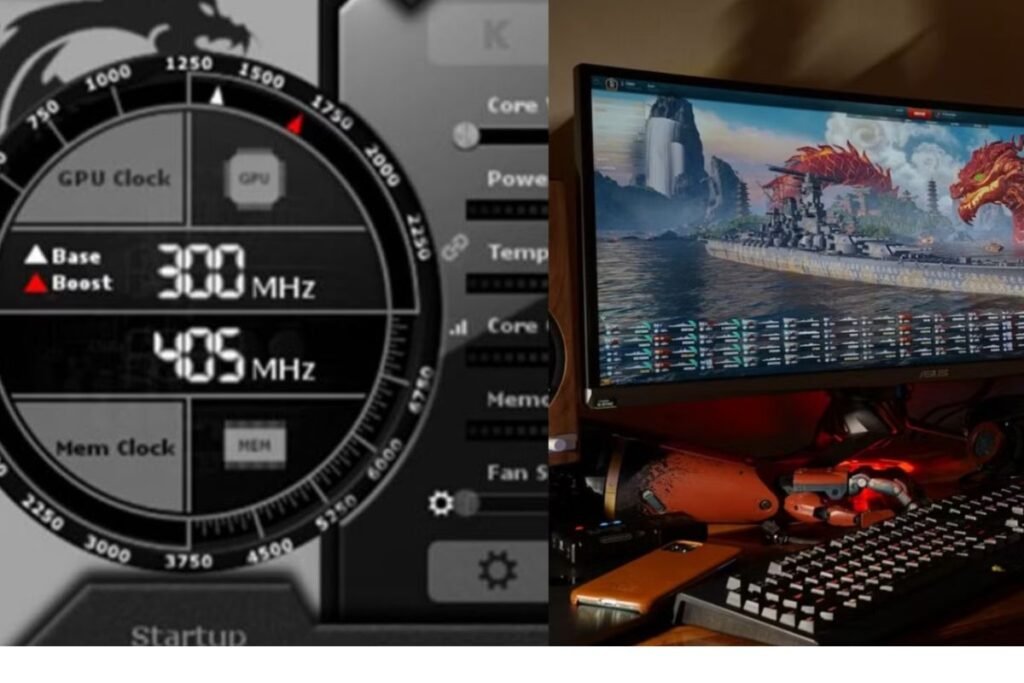
Use tools like:
- MSI Afterburner
- Task Manager
- HWMonitor
These tools help identify:
- CPU bottlenecks
- GPU overheating
- RAM shortages
- Storage issues
Monitoring hardware usage allows you to optimize settings more effectively.
Best Gaming PC Features for Streamers
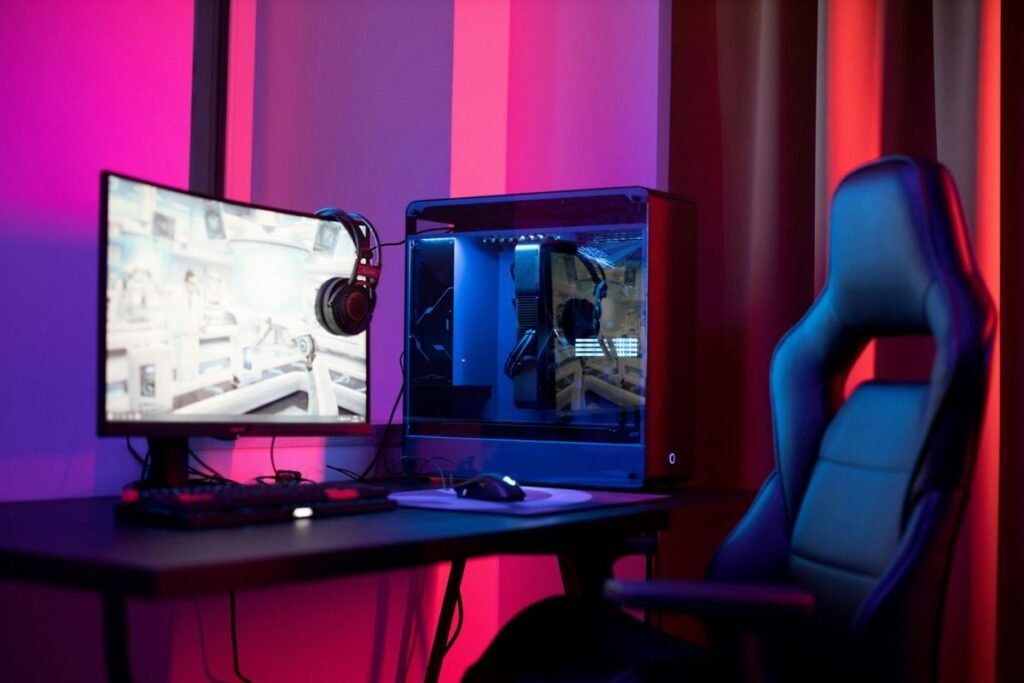
When choosing or upgrading a gaming pc for streaming, prioritize:
- Multi-core CPU
- Modern RTX GPU
- 32GB RAM
- NVMe SSD
- Strong cooling
- Reliable power supply
Gaming PCs designed for streaming often balance gaming power with multitasking performance.
Common Streaming Mistakes to Avoid
Even with a powerful gaming pc, many streamers still experience lag, dropped frames, overheating, and poor video quality because of common setup mistakes. Understanding these issues can help improve both gaming performance and stream quality. Many beginners focus only on expensive hardware upgrades, but optimization and proper system management are equally important for successful streaming.
Streaming at Too High Resolution

One of the most common mistakes new streamers make is trying to stream at extremely high resolutions, such as 1440p or 4K, without having the hardware or internet connection to support it. While higher resolutions may look impressive, they require significantly more GPU power, CPU encoding performance, and upload bandwidth. As a result, many systems struggle to maintain stable gameplay and smooth streaming at the same time.
For example, streaming modern AAA games at 4K resolution while also running a webcam, alerts, overlays, and background applications can heavily overload the graphics card and processor. This often causes:
- Dropped frames
- Stream buffering
- Audio desynchronization
- Blurry video quality
- Reduced in-game FPS
- Stream crashes
In many cases, viewers actually prefer a stable 1080p 60FPS stream over an unstable 4K stream with constant lag. Therefore, it is important to choose streaming settings that match your gaming pc capabilities and internet speed.
Most professional streamers recommend:
- 720p for low-end systems
- 1080p for mid-range and high-end gaming PCs
- 1440p only for very powerful systems
- 4K streaming for advanced professional setups
Lowering the stream resolution can dramatically improve performance while still providing excellent viewing quality for audiences.
Ignoring Cooling
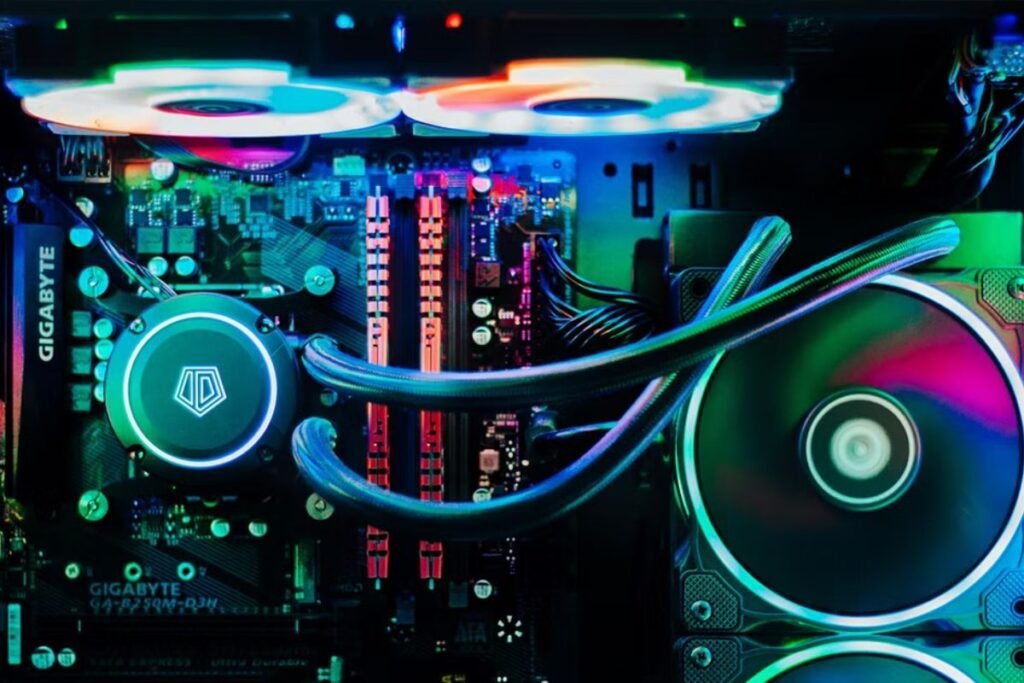
Cooling is one of the most overlooked parts of gaming pc optimization for streaming. During long streaming sessions, both the CPU and GPU operate under heavy workloads for extended periods of time. Without proper airflow and cooling, internal temperatures can rise quickly and reduce overall system performance.
When a gaming pc overheats, components automatically reduce their speed to prevent damage. This process is called thermal throttling. Unfortunately, thermal throttling can severely affect gaming and streaming performance by causing:
- Sudden FPS drops
- Stream stuttering
- Random freezing
- Increased fan noise
- System instability
- Unexpected shutdowns
Many users invest heavily in expensive hardware but forget to maintain proper cooling systems. Dust buildup inside the case can also block airflow and increase temperatures significantly over time.
To avoid overheating problems, streamers should:
- Clean dust from fans and filters regularly
- Improve cable management for better airflow
- Use high-quality CPU coolers
- Install additional intake and exhaust fans
- Replace old thermal paste when necessary
- Monitor temperatures using software tools
Proper cooling not only improves performance but also extends the lifespan of gaming pc components.
Using Old Drivers
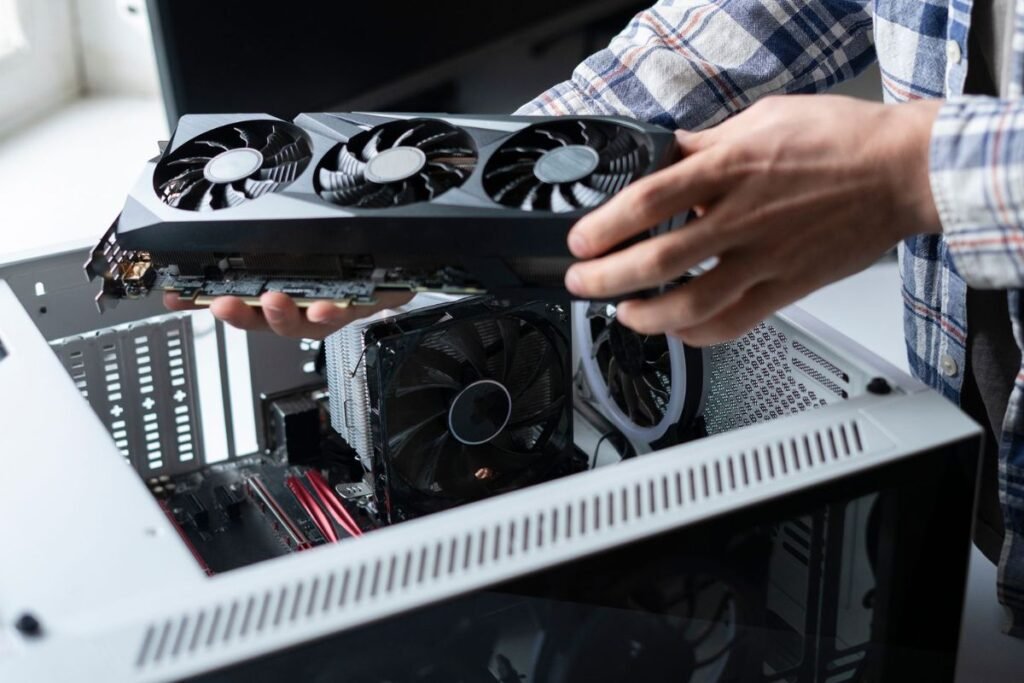
Another major mistake streamers make is ignoring driver updates. Graphics card drivers, chipset drivers, audio drivers, and BIOS updates often include important performance improvements, bug fixes, and streaming optimizations. Running outdated drivers can create serious problems during live broadcasts.
Old drivers may cause:
- Game crashes
- OBS freezing
- Encoder issues
- Audio problems
- Poor GPU performance
- Compatibility issues with new games
For example, NVIDIA and AMD frequently release driver updates specifically designed to improve gaming performance and hardware encoding for streamers. Ignoring these updates can prevent your gaming pc from performing at its full potential.
However, updating drivers should be done carefully. It is usually best to download drivers directly from official manufacturer websites rather than relying on random third-party sources.
Important drivers to keep updated include:
- GPU drivers
- Motherboard chipset drivers
- Network drivers
- Audio drivers
- Windows updates
Keeping software updated helps ensure better stability, smoother gameplay, and improved stream quality.
Running Too Many Programs
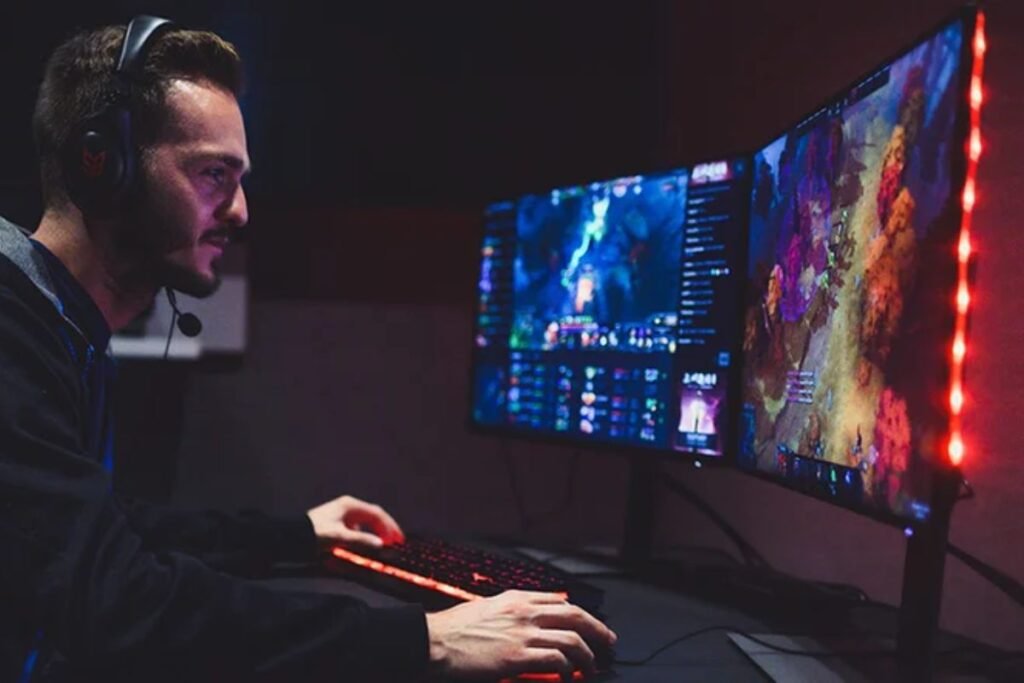
Many streamers underestimate how many system resources background applications consume. Even powerful gaming PCs can struggle when too many programs are running simultaneously during a stream.
Common background applications that use valuable resources include:
- Web browsers with multiple tabs
- Music software
- RGB control applications
- Cloud sync services
- Game launchers
- Antivirus scans
- Video editing software
- Overlay applications
When too many applications run in the background, the system may experience:
- High CPU usage
- Increased RAM consumption
- Reduced GPU availability
- Slower loading times
- Stream lag
- Lower frame rates
Some programs also use internet bandwidth in the background, which can negatively affect stream stability and viewer experience.
Before starting a stream, it is helpful to:
- Close unnecessary applications
- Disable startup programs
- Pause downloads and updates
- Reduce browser tabs
- Turn off unused overlays
- Restart the pc before streaming
These simple adjustments can free up valuable system resources and significantly improve streaming performance.
Conclusion
Understanding how to optimize a gaming pc for streaming is essential for anyone who wants smooth gameplay and professional-quality streams. By improving hardware performance, adjusting OBS settings, optimizing Windows, and maintaining proper cooling, you can significantly improve your streaming experience without overspending.
Modern gaming pc setups are more powerful than ever, but even the best systems need proper optimization to handle demanding games and live streaming simultaneously. With smart upgrades and the right settings, you can create stable, high-quality streams that keep viewers engaged while maintaining excellent gaming performance.
FAQs About Gaming PC Optimization for Streaming
Q1. What is the best gaming pc setup for streaming?
Ans: A good gaming pc setup for streaming should include a powerful multi-core processor, a modern graphics card with hardware encoding support, sufficient RAM, and fast SSD storage. Most streamers prefer at least an Intel Core i7 or AMD Ryzen 7 processor combined with an NVIDIA RTX GPU for smooth gaming and streaming performance. In addition, having 16GB or 32GB of RAM and an NVMe SSD can greatly improve multitasking and loading speeds during live broadcasts.
Q2. How much RAM does a gaming pc need for streaming?
Ans: For most streamers, 16GB of RAM is considered the minimum requirement for smooth gaming and streaming. However, if you frequently multitask with OBS Studio, Discord, browsers, editing software, and modern games, 32GB of RAM is highly recommended. Professional streamers and content creators who edit videos or stream at higher resolutions may benefit from 64GB of RAM for maximum performance and stability.
Q3. Is a GPU or a CPU more important for streaming?
Ans: Both components are important, but modern streaming setups often rely heavily on the GPU because many graphics cards include dedicated hardware encoders like NVIDIA NVENC or AMD AMF. These encoders reduce CPU workload and improve streaming efficiency. However, the CPU still plays a major role in handling background tasks, game physics, and multitasking. A balanced gaming pc with a strong CPU and GPU usually delivers the best streaming experience.
Q4. Why does my gaming pc lag while streaming?
Ans: Streaming lag can happen for several reasons, including high CPU usage, GPU overload, insufficient RAM, overheating, outdated drivers, or poor internet speed. Running games at ultra settings while streaming can also overload system resources. Lowering stream resolution, capping FPS, reducing graphics settings, and closing unnecessary background applications can help reduce lag and improve stream stability.
Q5. What internet speed is recommended for game streaming?
Ans: The required internet speed depends on your stream quality. For 720p streaming, at least 5 Mbps upload speed is recommended. For 1080p 60FPS streaming, most streamers prefer at least 10 Mbps upload speed. Higher resolutions like 1440p or 4K require even faster and more stable internet connections. Using a wired Ethernet connection instead of Wi-Fi is usually the best option for consistent stream quality.
Q6. Should I use OBS Studio for streaming on a gaming pc?
Ans: Yes, OBS Studio is one of the most popular streaming applications for gaming pc users because it is free, customizable, and highly optimized for streaming platforms like Twitch and YouTube. OBS supports hardware encoding, multiple scenes, overlays, alerts, and advanced streaming controls. Many professional streamers prefer OBS because of its flexibility and performance features.
Q7. Does SSD storage improve streaming performance?
Ans: Yes, SSD storage can significantly improve overall gaming pc responsiveness and streaming performance. Games installed on SSDs load much faster and experience fewer stutters compared to traditional hard drives. NVMe SSDs are even faster and can improve recording speeds, application loading times, and Windows responsiveness during streaming sessions.
Q8. What are the best OBS settings for a gaming pc?
Ans: For most gaming pc setups, streamers commonly use:
- 1920×1080 resolution
- 60 FPS
- 6000 Kbps bitrate
- NVENC encoder
- Keyframe interval of 2
These settings provide a good balance between stream quality and system performance. However, lower-end systems may need reduced resolution or FPS settings for smoother streaming.
Q9. Why is cooling important for a gaming pc while streaming?
Ans: Streaming places heavy workloads on both the CPU and GPU for long periods of time. Without proper cooling, components can overheat and reduce performance through thermal throttling. Overheating may cause frame drops, crashes, loud fan noise, and unstable streams. Good airflow, clean fans, proper cable management, and quality cooling solutions help maintain stable temperatures and improve long-term gaming pc performance.
Q10. Can a budget gaming pc handle streaming?
Ans: Yes, a budget gaming pc can handle streaming if properly optimized. Lowering stream resolution to 720p, using hardware encoding, reducing in-game graphics settings, and closing background applications can help improve performance on entry-level systems. While high-end gaming PCs provide smoother multitasking and better video quality, budget setups can still produce good streams with the right settings.
Q11. What programs should I close before streaming?
Ans: Before streaming, it is best to close unnecessary programs that consume CPU, RAM, GPU resources, or internet bandwidth. Common applications to close include:
- Extra browser tabs
- Download managers
- Background launchers
- Cloud sync services
- Unused overlays
- Large software updates
- Video editing applications
Reducing background activity allows your gaming pc to dedicate more resources to gaming and streaming.
Q12. Is a dual monitor setup useful for streaming?
Ans: Yes, many streamers consider a dual-monitor setup extremely useful. One monitor can display the game while the second monitor handles OBS Studio, live chat, alerts, stream controls, and monitoring tools. This setup improves multitasking and makes stream management much easier during live broadcasts.
Q13. What causes dropped frames during streaming?
Ans: Dropped frames are often caused by:
- Slow internet upload speed
- High CPU usage
- GPU overload
- Overheating
- Incorrect OBS settings
- Background applications
- Unstable network connections
Lowering stream bitrate, reducing resolution, and improving internet stability can help reduce dropped frames significantly.
Related keyword: gaming pc, gaming pc for streaming, best gaming pc, gaming pc optimization, streaming gaming pc, gaming pc setup, budget gaming pc, high-end gaming pc, gaming pc performance, gaming pc cooling, gaming pc streaming setup, best gaming pc for Twitch, gaming pc for YouTube streaming, gaming pc hardware, gaming pc upgrade, gaming pc RAM upgrade, gaming pc SSD, gaming pc GPU, gaming pc CPU, gaming pc for OBS Studio, gaming pc streaming settings, gaming pc airflow, gaming pc maintenance, gaming pc internet optimization, gaming pc multitasking, gaming pc FPS optimization, gaming pc thermal throttling, gaming pc streaming tips, gaming pc drivers, gaming pc encoder settings, gaming pc NVENC, gaming pc AMF encoder, gaming pc dual monitor setup, gaming pc streaming performance, gaming pc troubleshooting, gaming pc for content creators, gaming pc streaming software, gaming pc OBS settings, gaming pc live streaming, gaming pc recording setup, gaming pc frame rate optimization, gaming pc graphics settings, gaming pc stream quality, gaming pc internet speed, gaming pc hardware encoding, gaming pc setup guide, gaming pc for beginners, gaming pc streaming guide, gaming pc resource management, gaming pc background apps optimization .
Post a Comment